

Google Pixel eSIM Guide: Compatibility & Setup (2026)
This Google Pixel eSIM guide explains how to check eSIM compatibility, install an eSIM, activate mobile data, and use dual SIM on supported Pixel phones. Whether you are setting up eSIM on Google Pixel 9, Pixel 8, Pixel 7, Pixel 6, Pixel 6a, or checking Google Pixel 10 eSIM compatibility before purchase, this guide will help you prepare your phone for international travel.
Before you install your Flow Go eSIM, make sure your Google Pixel is network unlocked, connected to a stable Wi-Fi network, and supports eSIM. If you are not sure whether your model is supported, check our updated eSIM compatible devices list before buying a data plan.
Table of Contents
- What You Need Before Google Pixel eSIM Setup
- Google Pixel eSIM Compatibility List
- How to Check If Your Google Pixel Supports eSIM
- When Should You Install eSIM for International Travel?
- How to Set Up eSIM on Google Pixel
- How to Activate eSIM on Google Pixel
- How to Use Dual SIM on Google Pixel
- Google Pixel eSIM Troubleshooting
- Google Pixel eSIM FAQ
What You Need Before Google Pixel eSIM Setup
To complete Google Pixel eSIM setup successfully, please prepare the following before scanning your eSIM QR code:
- A stable Wi-Fi connection.
- A Google Pixel phone that supports eSIM.
- An unlocked phone that is not restricted by your carrier.
- Your Flow Go eSIM QR code or manual activation details.
- Enough battery power to complete the installation process.
If your Pixel phone is carrier locked, the eSIM may not activate correctly. If you are not sure whether your phone is unlocked, contact your original mobile carrier before installing your travel eSIM.
Google Pixel eSIM Compatibility List
Most recent Google Pixel phones support eSIM, but compatibility can vary by country, region, carrier, and model variant. The table below gives a general overview for popular Pixel models.
| Google Pixel Model | eSIM Support | Notes |
|---|---|---|
| Google Pixel 9 / 9 Pro / 9 Pro XL / 9 Pro Fold | Supported | Commonly supports eSIM. Check regional model restrictions before purchase. |
| Google Pixel 8 / 8 Pro / 8a | Supported | Suitable for Google Pixel 8 eSIM setup and international travel eSIM use. |
| Google Pixel 7 / 7 Pro / 7a | Supported | Supports eSIM on most unlocked models. |
| Google Pixel 6 / 6 Pro / 6a | Supported | Suitable for Google Pixel 6 eSIM activation and Pixel 6a eSIM setup. |
| Google Pixel 5 | Supported | Supports eSIM on compatible unlocked models. |
| Google Pixel 4 / 4 XL | Dual SIM support | Supports eSIM on many variants, but check carrier and region limitations. |
| Google Pixel 3 / 3 XL | Limited support | Some carrier or regional versions may not support eSIM. |
| Google Pixel 2 and earlier | Limited or not supported | Pixel 2 eSIM support is limited, and older Pixel models usually do not support eSIM. |
For the latest model list, including Pixel, iPhone, Samsung Galaxy, Xiaomi, Huawei, OPPO, and OnePlus devices, visit our eSIM compatible devices page.
How to Check If Your Google Pixel Supports eSIM
Before installing your eSIM, check whether your Pixel phone supports eSIM and whether it is unlocked. This is important for Google Pixel eSIM activation, especially when using a travel data plan outside your home country.
Method 1: Check in Pixel Settings
- Open Settings on your Google Pixel.
- Tap Network & Internet.
- Tap SIMs or Mobile network.
- Look for options such as Add SIM, Download a SIM instead, or Use eSIM.
If you see an option to download a SIM or add an eSIM, your phone likely supports eSIM. However, the phone still needs to be unlocked and compatible with the destination network.
Method 2: Check Your Pixel Model
You can check your exact model by going to:
Settings > About phone > Model
After checking the model name, compare it with our updated eSIM compatibility list.
Method 3: Check If Your Phone Is Carrier Unlocked
Even if your Google Pixel supports eSIM, a carrier-locked phone may block eSIM activation. If the phone was purchased with a mobile contract, contact your carrier to confirm whether the device is unlocked for international eSIM use.
When Should You Install eSIM for International Travel?
For most travel eSIM plans, the best time to install and activate your eSIM is close to your departure date or after you arrive at your destination. This helps avoid using service days before your trip begins.
Best Practice for Travel eSIM Installation
- Install your eSIM when you have stable Wi-Fi.
- Do not activate data roaming too early if the plan starts counting after connecting to the destination network.
- Read the product details carefully before purchase, especially the validity period and activation rules.
- If a product says billing starts immediately after purchase, the service period may begin right after payment.
In general, many travelers install the eSIM before departure while connected to home Wi-Fi, then activate mobile data and roaming after arriving at the destination. However, activation rules can vary by product, so always check the plan description.
Example: How Service Days Are Calculated
If you purchase a 1-day eSIM plan and activate it at 14:00 local time, the plan usually remains valid for 24 hours and expires at 14:00 the next day, depending on the product rules.
How to Set Up eSIM on Google Pixel
Follow the steps below to complete Google Pixel eSIM setup. These steps apply to many supported Pixel models, including Google Pixel 9, Pixel 8, Pixel 8a, Pixel 7, Pixel 6, and Pixel 6a. The wording may vary slightly depending on your Android version.
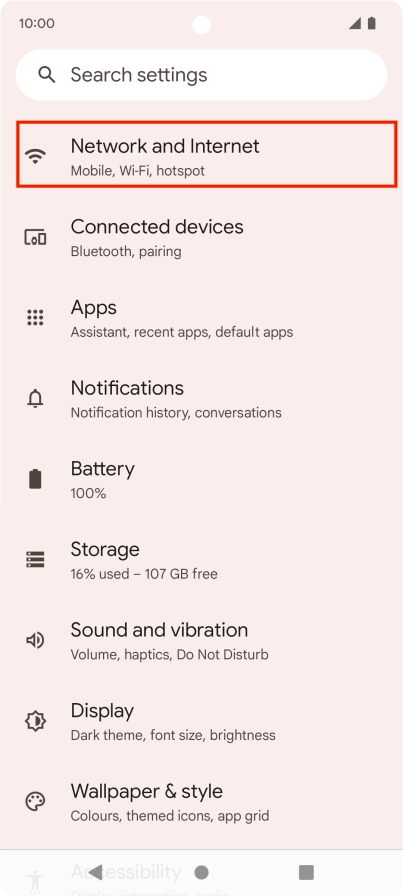
Step 1: Open Network Settings
Go to Settings > Network & Internet.
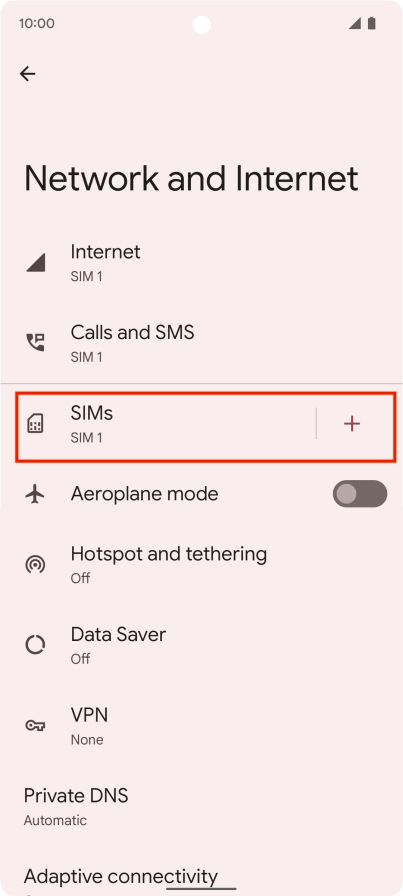
Step 2: Add a New SIM
Select the plus icon next to SIMs or Mobile network. Then choose Download a SIM instead or Don't have a SIM card?.
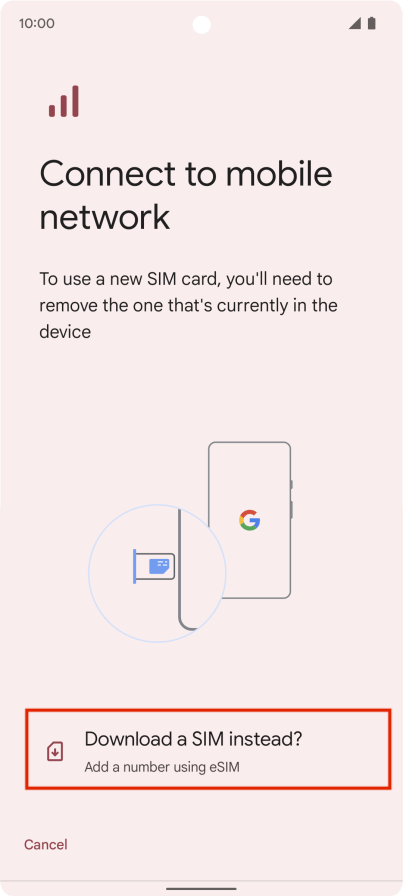
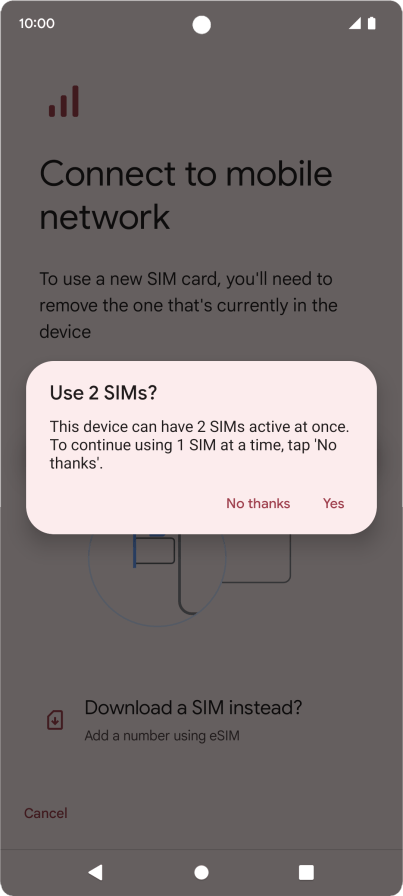
Step 3: Confirm You Want to Use eSIM
If your Pixel asks whether you want to use two SIMs, tap Yes. Then continue to download your eSIM profile.
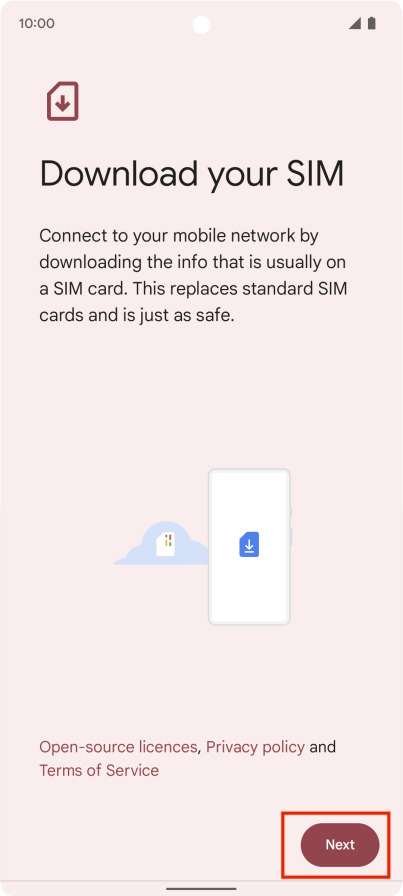
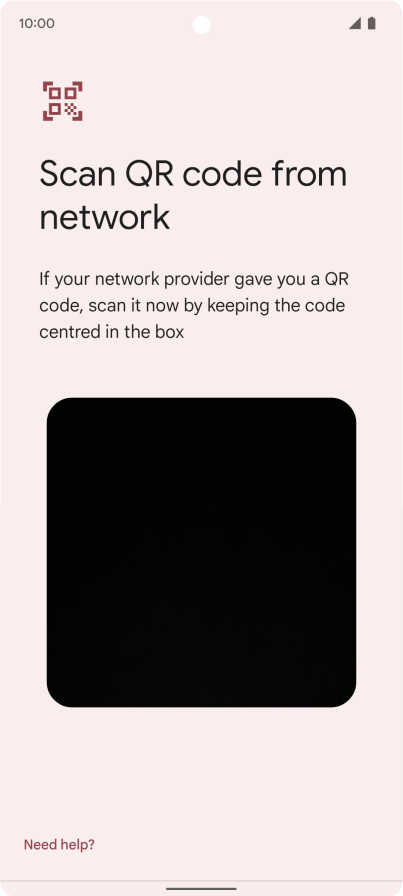
Step 4: Scan Your eSIM QR Code
Use your Pixel camera to scan the QR code from your Flow Go eSIM order. Once the QR code is recognized, your Google Pixel will begin downloading the eSIM profile.
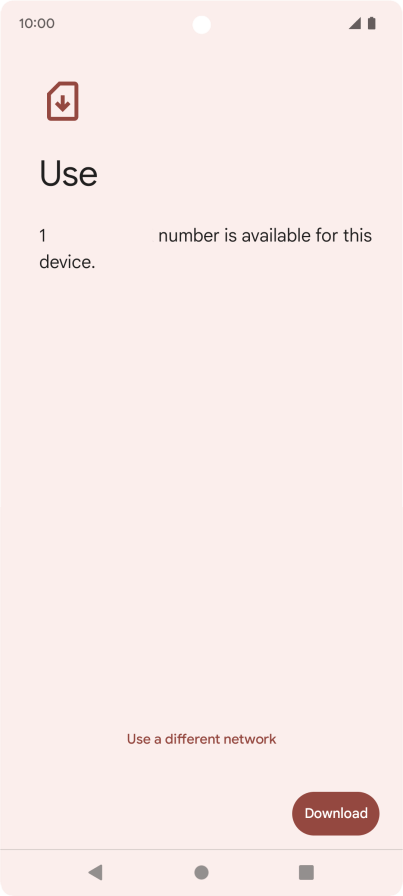
Step 5: Name Your eSIM Plan
After installation, you can rename the eSIM plan to make it easier to recognize. For example, you can name it Flow Go eSIM, Travel eSIM, or the destination name.
How to Activate eSIM on Google Pixel
After installation, you may need to activate the eSIM and turn on mobile data. This section is especially useful for searches such as Google Pixel 6 eSIM activation, Google Pixel 8 eSIM setup, and Google Pixel 9 eSIM activation.
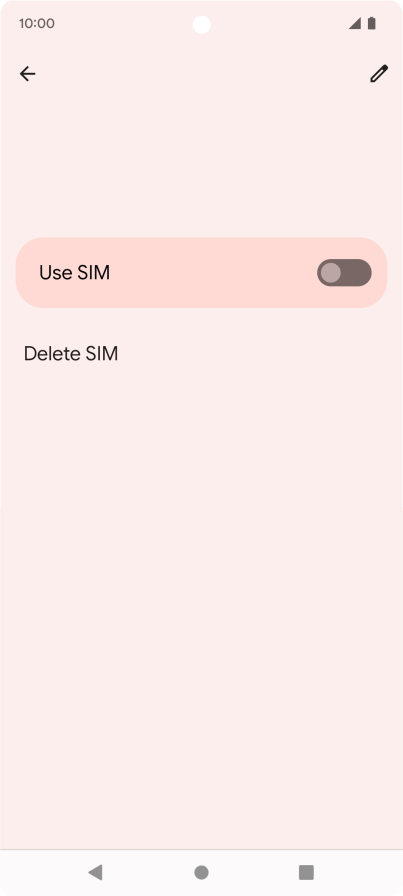
Step 1: Select Your New eSIM
Go to Settings > Network & Internet > SIMs. Select your newly installed eSIM and turn on Use SIM or Use eSIM.
Step 2: Turn On Mobile Data
Choose your travel eSIM for mobile data. If your Pixel asks which SIM should be used for data, select your Flow Go eSIM.
Step 3: Turn On Data Roaming for Your Travel eSIM
For Flow Go eSIM travel data plans, data roaming usually needs to be turned on for the eSIM to connect to the local partner network.
Important: Turn on roaming for your Flow Go eSIM, but keep roaming off for your primary SIM if you want to avoid unexpected roaming charges from your home carrier.

Step 4: Restart Your Pixel If Needed
If the eSIM does not connect immediately, restart your Google Pixel and wait a few minutes. Your phone may need time to register on the destination network.
How to Use Dual SIM on Google Pixel
Many Google Pixel phones support dual SIM, usually with one physical SIM and one eSIM. This feature is useful when you want to keep your primary number active while using a travel eSIM for mobile data.
What Is Dual SIM Dual Standby?
Dual SIM Dual Standby, also called DSDS, allows your Pixel to keep two SIM lines available at the same time. You can choose one SIM for calls and SMS, and another SIM for mobile data.
Recommended Dual SIM Settings for Travel
- Use your primary SIM for calls and SMS if needed.
- Use your Flow Go eSIM for mobile data.
- Turn off data roaming on your primary SIM to avoid carrier roaming fees.
- Turn on data roaming on your travel eSIM if required by the plan.
5G and Dual SIM on Google Pixel
Some Google Pixel models support 5G while using dual SIM, but availability depends on your device, Android version, destination network, and the eSIM plan. If 5G is not available, your phone may connect to 4G/LTE instead.
Google Pixel eSIM Troubleshooting
If your Google Pixel eSIM is not working, try the following checks before contacting support.
Problem 1: The eSIM QR Code Does Not Scan
- Make sure your phone is connected to Wi-Fi.
- Increase screen brightness if scanning from another device.
- Check whether the QR code has already been used.
- Try manual installation if activation details are provided.
Problem 2: The eSIM Is Installed but No Internet Connection
- Make sure mobile data is turned on.
- Make sure data roaming is turned on for the travel eSIM.
- Check that the Flow Go eSIM is selected for mobile data.
- Restart your Google Pixel.
- Try manual network selection if the phone does not connect automatically.
Problem 3: Your Pixel Shows No Service
If your Pixel shows no service, your phone may not have connected to the correct local carrier yet. Go to mobile network settings and try selecting a network manually. Network availability depends on your destination, local carrier coverage, and the eSIM plan you purchased.
Problem 4: eSIM Option Is Missing on Your Pixel
If you do not see the eSIM option, your device may not support eSIM, may be carrier restricted, or may be a regional variant without eSIM support. Check our eSIM compatible devices list or contact support before purchasing a plan.
Google Pixel eSIM FAQ
Does Google Pixel support eSIM?
Many Google Pixel phones support eSIM, including Pixel 9, Pixel 8, Pixel 7, Pixel 6, Pixel 6a, and Pixel 5. Some older or regional models may have limitations. Always check your exact model before purchasing an eSIM plan.
Does Google Pixel 8 support eSIM?
Yes, Google Pixel 8 and Pixel 8 Pro generally support eSIM. For Google Pixel 8 eSIM setup, go to Settings, open Network & Internet, add a SIM, and scan your eSIM QR code.
Does Google Pixel 6 support eSIM?
Yes, Google Pixel 6, Pixel 6 Pro, and Pixel 6a generally support eSIM. For Google Pixel 6 eSIM activation, install the eSIM profile first, then select the eSIM for mobile data and turn on data roaming if required.
Does Google Pixel 6a support eSIM?
Yes, Google Pixel 6a usually supports eSIM. Before Pixel 6a eSIM setup, make sure your phone is unlocked and connected to Wi-Fi.
Does Google Pixel 9 support eSIM?
Yes, Google Pixel 9 series models generally support eSIM. Compatibility can still vary by region and carrier, so check your device model and unlock status before installation.
Does Google Pixel 10 support eSIM?
If you are searching for Google Pixel 10 eSIM compatibility, check the official device specifications and your carrier restrictions before buying an eSIM. eSIM support may vary by model, region, and carrier. You can also check our updated eSIM compatible devices list for the latest supported models.
Can I use eSIM and a physical SIM at the same time on Google Pixel?
Yes, many Pixel models support dual SIM with one physical SIM and one eSIM. This lets you keep your regular number while using a travel eSIM for mobile data.
Should I install my Google Pixel eSIM before traveling?
You can install the eSIM before traveling if you have stable Wi-Fi, but you should check the activation rules of your plan. Some plans start when they connect to a destination network, while some may start immediately after purchase or installation.
Why is my Google Pixel eSIM not working?
Common reasons include carrier lock, unsupported model, weak local coverage, data roaming turned off, wrong SIM selected for mobile data, or an already used QR code. Check your settings and restart your phone before contacting support.
Final Checklist Before Using eSIM on Google Pixel
- Confirm that your Google Pixel supports eSIM.
- Make sure your phone is network unlocked.
- Connect to stable Wi-Fi before installation.
- Scan your eSIM QR code only when you are ready to install.
- Select your Flow Go eSIM for mobile data.
- Turn on data roaming for the travel eSIM if required.
- Keep roaming off on your primary SIM to avoid unexpected charges.
If you are not sure whether your phone supports eSIM, check the Flow Go eSIM compatible devices list before purchasing your travel data plan.