

How to Activate eSIM on iPhone: Step-by-Step Travel Setup Guide
Quick answer: To activate an eSIM on iPhone, first make sure your iPhone supports eSIM and is unlocked. Then go to Settings > Cellular or Settings > Mobile Data, tap Add eSIM, scan your QR code, label your eSIM, set it as your mobile data line, and turn on data roaming if required by your travel eSIM instructions.
This guide shows you how to install and activate a travel eSIM on iPhone, including compatibility checks, QR code setup, mobile data settings, data roaming, manual network selection, and common fixes if your iPhone eSIM is not working.
Important: Flow Go eSIM plans include mobile data only. They do not include a phone number, voice calls, or SMS. You can use mobile data with apps such as WhatsApp, iMessage, FaceTime, Messenger, WeChat, Telegram, and other internet-based communication apps.
Table of Contents
2. How to Check If Your iPhone Supports eSIM
3. Should You Install eSIM Before Travel?
4. How to Install eSIM on iPhone with a QR Code
5. How to Activate Your eSIM on iPhone
6. How to Set Mobile Data and Data Roaming
7. How to Choose a Mobile Network Manually
8. iPhone eSIM Not Working? Quick Fixes
Before You Start
Before installing a travel eSIM on your iPhone, prepare the following:
- An iPhone that supports eSIM
- An unlocked iPhone that can use mobile data plans from other providers
- A stable Wi-Fi connection
- Your eSIM QR code or activation details from your eSIM provider
- Your destination and plan details, including validity period and activation rules
Most iPhone XS, iPhone XS Max, iPhone XR, and newer models support eSIM. However, eSIM support may vary by country, region, carrier, and model variant.
Note: Some iPhone 14 and later models sold in the United States are eSIM-only and may not have a physical SIM tray. Some iPhones purchased in mainland China may not support eSIM. Always check your exact device before buying a travel eSIM.
How to Check If Your iPhone Supports eSIM
Before buying or installing a travel eSIM, check whether your iPhone has an EID number. The EID is a good sign that your iPhone supports eSIM.
- Open Settings.
- Tap General.
- Tap About.
- Scroll down and look for EID.
If your iPhone shows an EID number, it usually means the device supports eSIM. You should also make sure your iPhone is unlocked, because a carrier-locked iPhone may not work with a travel eSIM.
Important: eSIM availability can vary by region. Most iPhones purchased in mainland China do not support eSIM. US iPhone 14 and later models are usually eSIM-only. Hong Kong and Macau models may vary by model. If you are unsure, check your exact model before purchasing.
You can also check Flow Go's updated eSIM compatible devices list before buying a plan.
Should You Install eSIM Before Travel?
In most cases, it is a good idea to install your eSIM before travel while you still have a stable Wi-Fi connection. This helps you avoid setup problems after arriving at your destination.
However, installation time and activation time are not always the same. Some eSIM plans start their validity period only after connecting to a supported network in the destination. Other plans may start immediately after purchase or installation, depending on the product rules.
Before installing your eSIM, always read the plan details and activation instructions on the product page.
Best practice: Install your eSIM before departure when you have Wi-Fi, but only turn it on and start using it according to the activation instructions for your specific plan.
How Service Days Are Calculated
The service period may start based on the product rules. For many travel eSIM plans, validity starts when the eSIM first connects to a supported network in the destination. For some products labeled as Billing Starts Immediately After Purchase, the service period may begin right after purchase.
Example:
If you have a 1-day eSIM and the plan starts when activated at 14:00 local time, the service will usually last for 24 hours and expire around 14:00 the next day. Always check the specific product instructions before purchase.
How to Install eSIM on iPhone with a QR Code
Follow the steps below to install your travel eSIM on iPhone using a QR code.
Step 1: Add a New eSIM
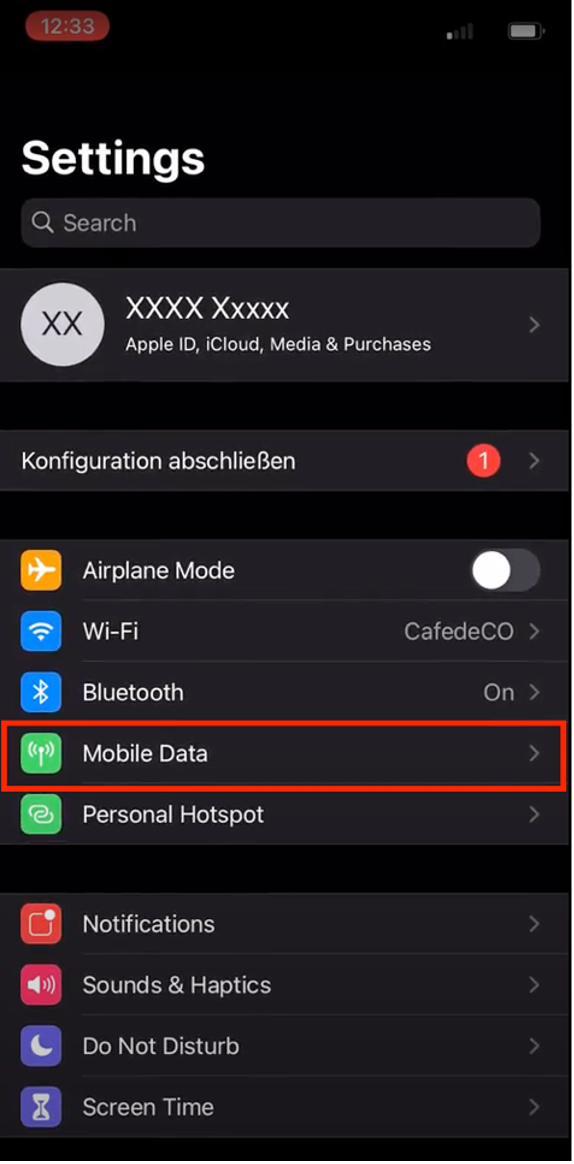
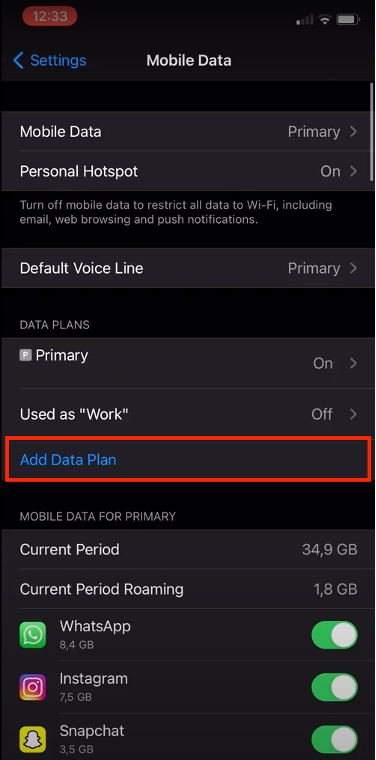
Go to Settings > Cellular or Settings > Mobile Data, then tap Add eSIM or Add Cellular Plan.
Step 2: Scan Your eSIM QR Code
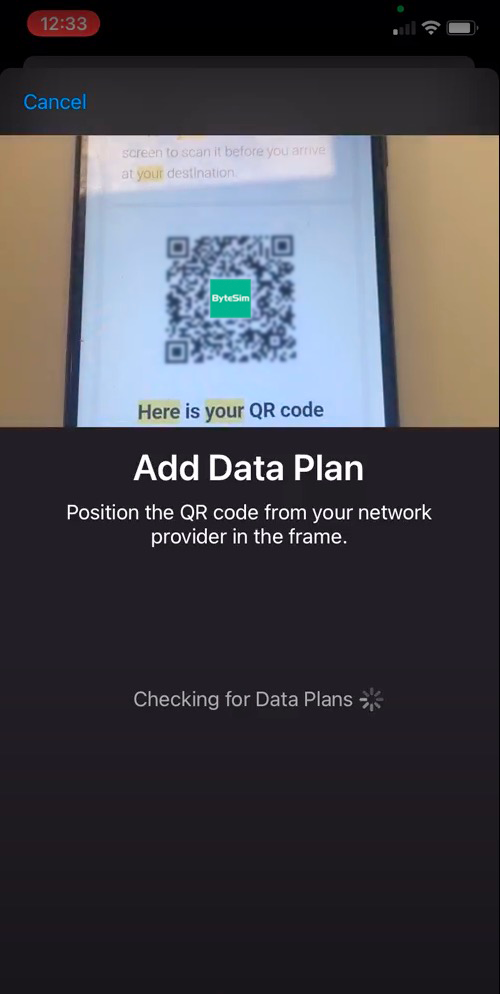
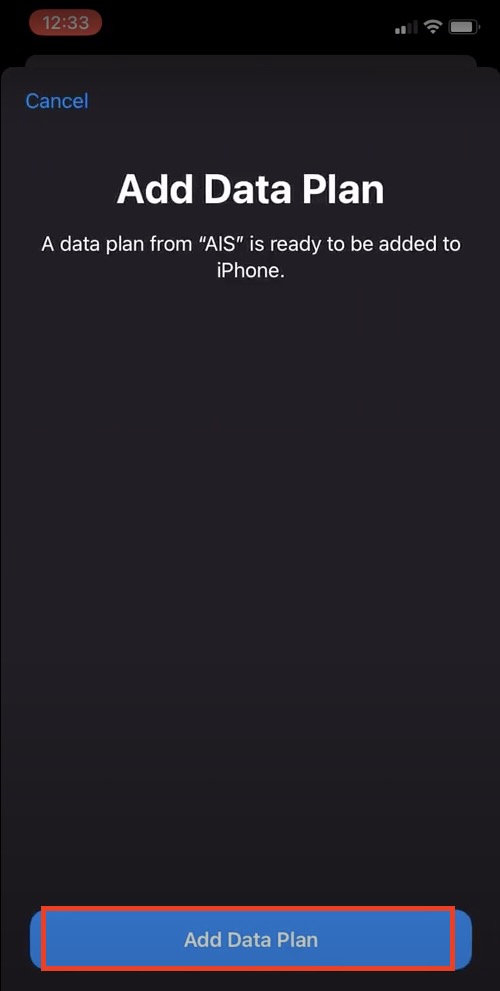
Your iPhone camera will open. Scan the QR code provided after purchase. You can open the QR code on another device or print it before scanning.
Step 3: Label Your eSIM
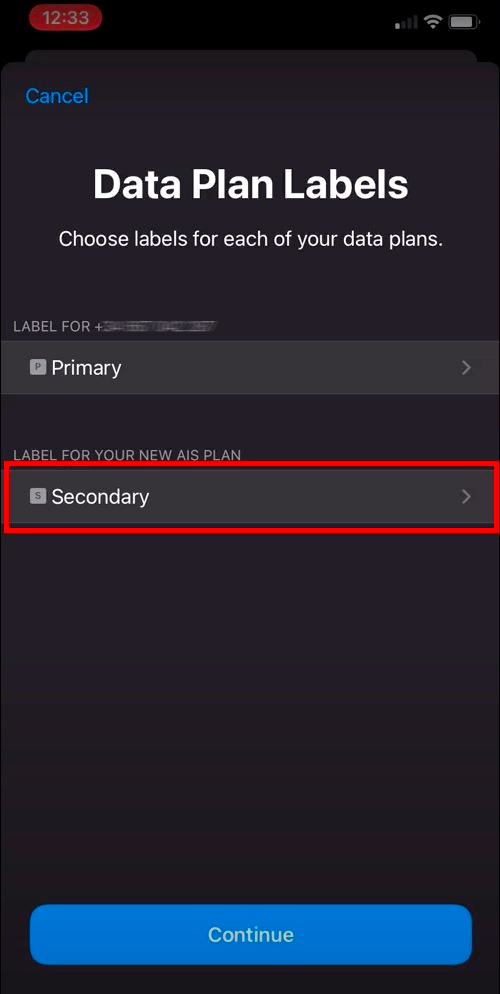
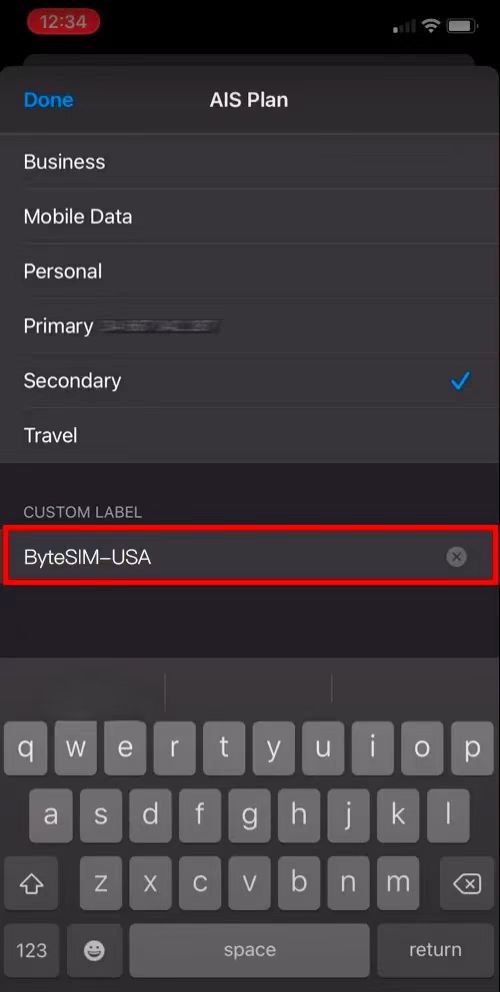
After the eSIM is added, label it clearly, such as Flow Go Travel, Flow Go Japan, or Flow Go USA. This helps you identify your travel eSIM easily in your iPhone settings.
Step 4: Choose Your Default Lines
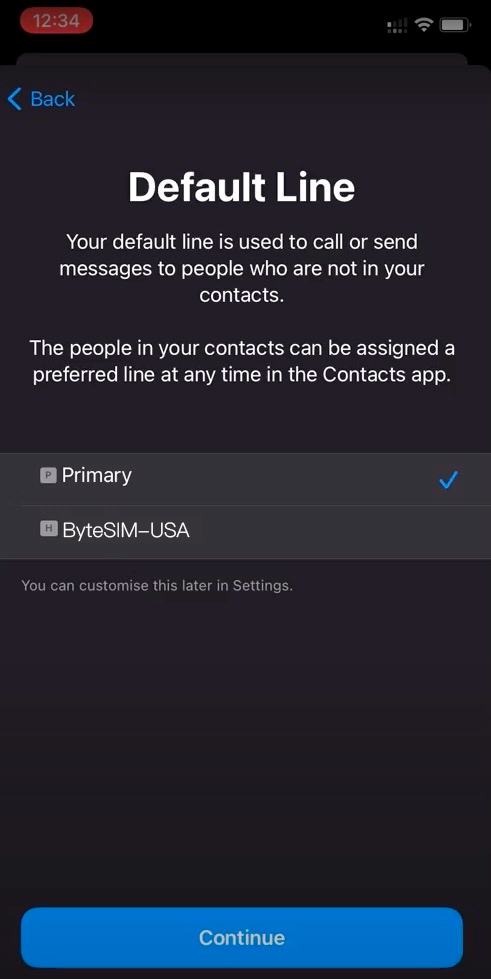
You can choose which line to use for calls, messages, iMessage, FaceTime, and mobile data. For travel, many users keep their primary SIM for calls and messages while using the travel eSIM for mobile data.
Important: Turn off Allow Mobile Data Switching if you want to avoid your iPhone switching back to your primary SIM for data and potentially causing roaming charges from your home carrier.
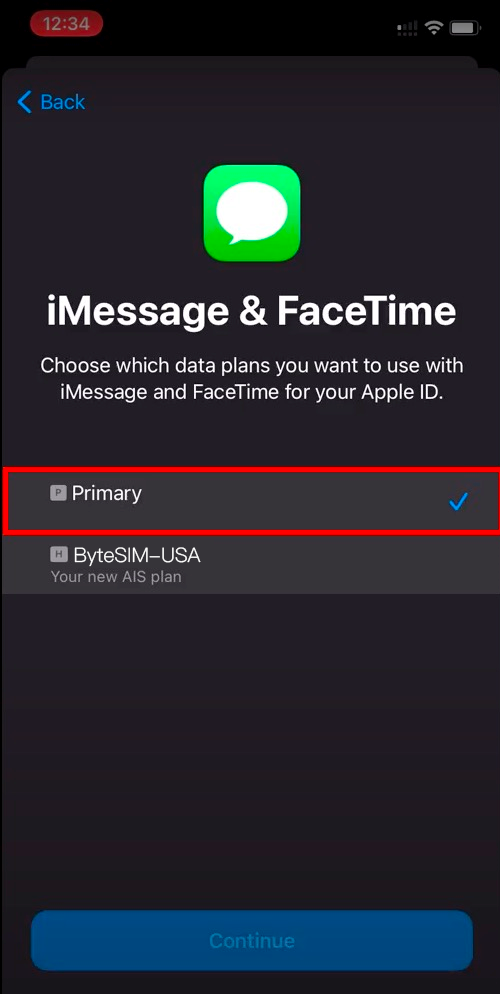
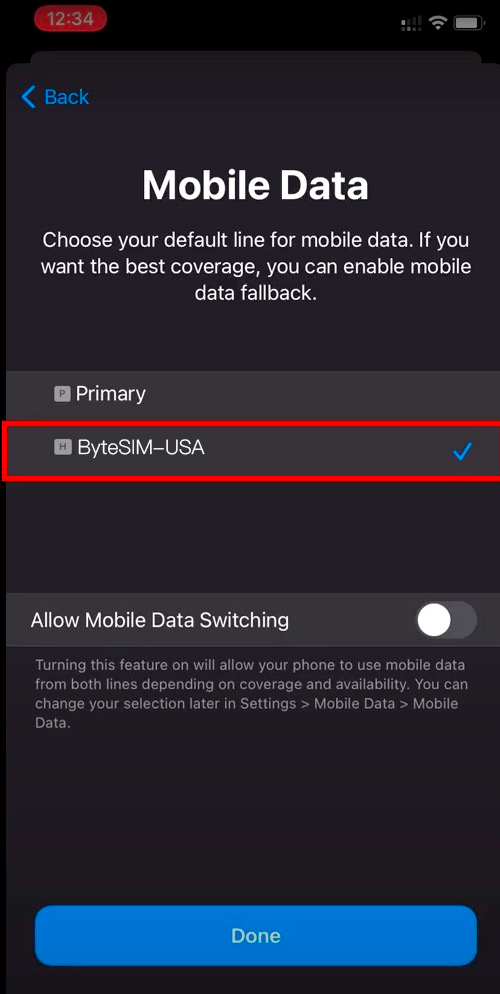
After completing the steps above, your eSIM installation is done.
How to Activate Your eSIM on iPhone
After installation, you can activate your eSIM by turning on the eSIM line and setting it as your mobile data line.
Step 1: Turn On Your eSIM Line
Go to Settings > Cellular or Settings > Mobile Data, choose your eSIM, then turn on Turn On This Line.
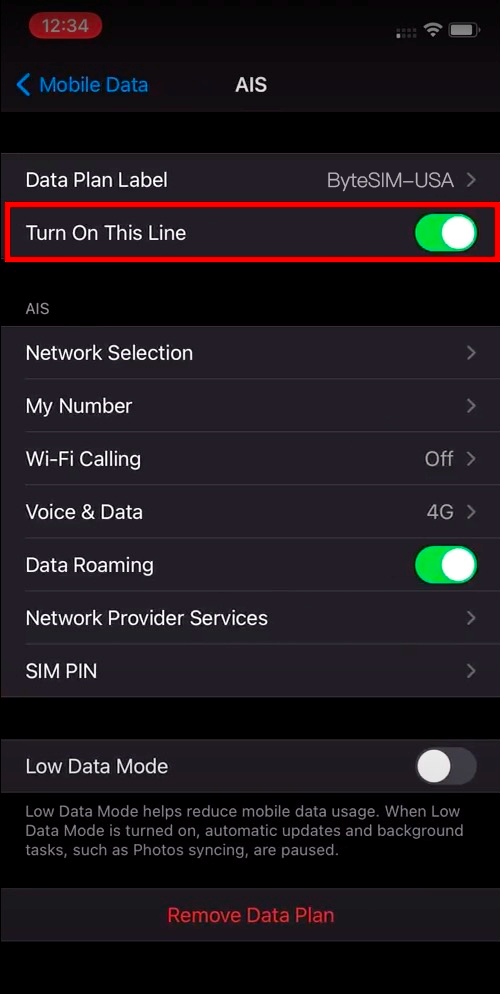
Step 2: Set the eSIM for Mobile Data
Go to Cellular Data or Mobile Data and select your travel eSIM as the data line. This lets your iPhone use the travel eSIM for internet access.
Step 3: Turn On Data Roaming If Required
Many travel eSIM plans require data roaming to be turned on for the eSIM line. This does not mean you should turn on roaming for your primary SIM. Make sure data roaming is enabled only for the travel eSIM if required by the instructions.
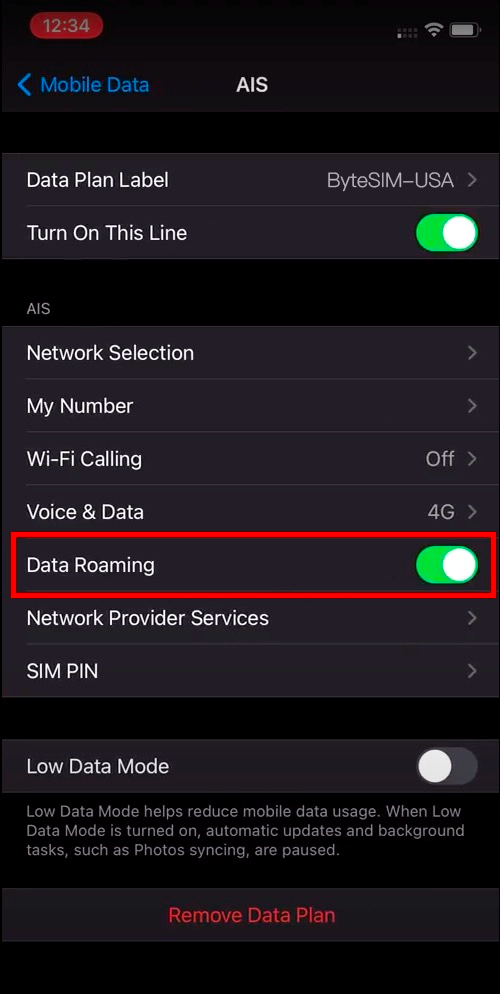
How to Set Mobile Data and Data Roaming
To avoid unexpected roaming charges from your home carrier, check these settings carefully:
- Select your Flow Go travel eSIM as the Mobile Data or Cellular Data line.
- Turn off Allow Mobile Data Switching if you do not want your iPhone to switch back to your primary SIM for data.
- Turn on Data Roaming only for the travel eSIM if required by your plan instructions.
- Keep your primary SIM available for calls and SMS only if you need it, but check roaming settings with your home carrier.
How to tell if your eSIM is active?
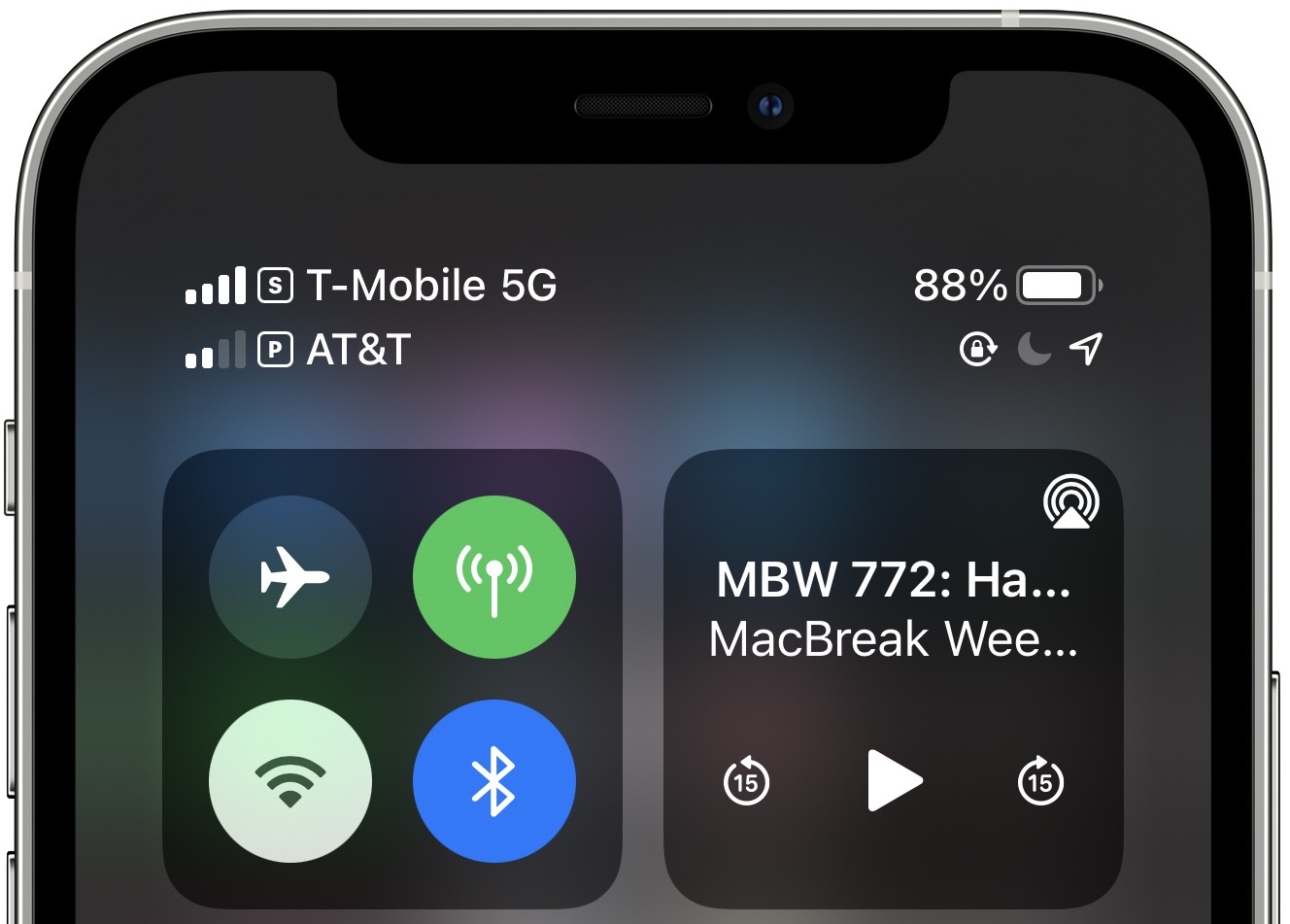
If your eSIM is active, your iPhone may show signal bars for the travel eSIM line. You should also be able to browse the internet using mobile data after choosing the travel eSIM as your data line.
How to Choose a Mobile Network Manually on iPhone
In most cases, your iPhone should connect to a supported network automatically. If your signal is weak or your eSIM has no service, you may try manual network selection when available.
To manually select a network on iPhone:
- Go to Settings.
- Tap Cellular or Mobile Data.
- Select your travel eSIM.
- Tap Network Selection.
- Turn off Automatic.
- Select a supported network from the list.
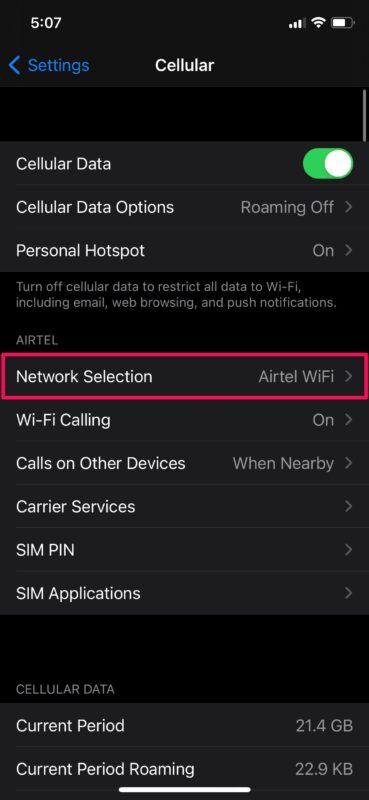
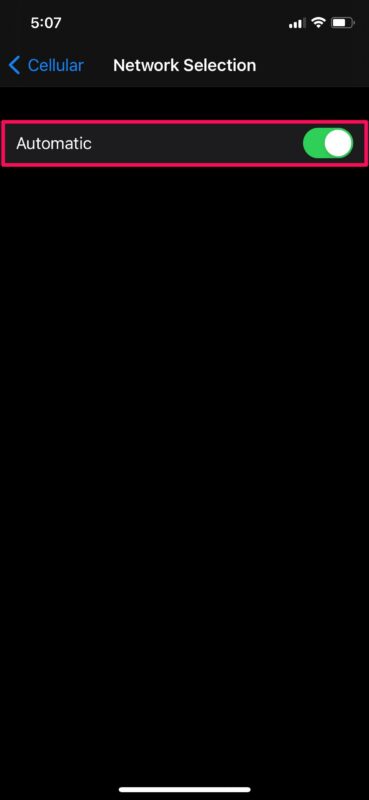
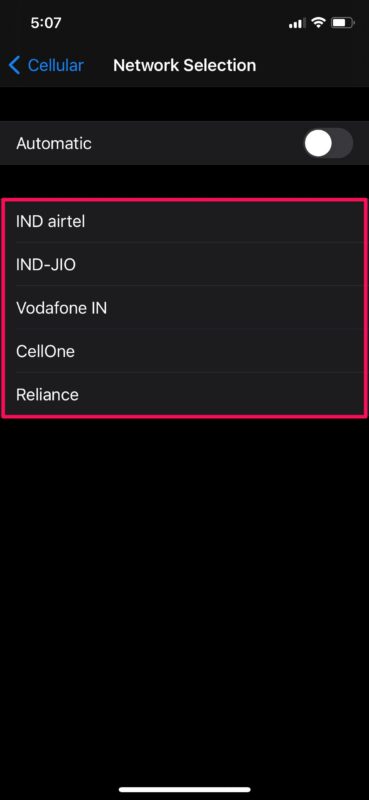
Network availability, signal strength, and data speed may vary by destination, local carrier, location, device model, and network conditions. If one network does not work well, switch back to Automatic or try another supported network if available.
When you return home, you can set Network Selection back to Automatic.
iPhone eSIM Not Working? Quick Fixes
If your eSIM is installed but mobile data is not working, check the following first:
- Make sure your iPhone supports eSIM and shows an EID number.
- Make sure your iPhone is unlocked and can use third-party mobile data plans.
- Make sure the eSIM line is turned on.
- Set the travel eSIM as your mobile data line.
- Turn on data roaming for the travel eSIM if required.
- Check whether you are in a supported destination.
- Restart your iPhone.
- Try manual network selection if automatic connection does not work.
- Make sure your plan has not expired or run out of data.
If the issue continues, contact Flow Go support with your order number, device model, destination, and screenshots of your mobile data settings.
FAQ: iPhone eSIM Setup and Activation
Can iPhone XR use eSIM?
Yes, most iPhone XR models support eSIM. However, support may vary by country, region, and carrier. Check for an EID number in Settings before buying a travel eSIM.
Can iPhone SE use eSIM?
iPhone SE 2nd generation 2020 and iPhone SE 3rd generation 2022 usually support eSIM. Older iPhone SE models do not support eSIM.
Does iPhone 12 have eSIM?
Yes, most iPhone 12 models support eSIM and Dual SIM with a physical SIM and an eSIM. Regional differences may apply.
Does iPhone 17 support eSIM?
Newer iPhone models, including the iPhone 17 series where available, are generally expected to support eSIM. However, eSIM availability may vary by country, region, and model variant. Always check your iPhone for an EID number before purchasing a travel eSIM.
Do iPhones from mainland China support eSIM?
Most iPhones purchased in mainland China do not support eSIM. If your iPhone does not show an EID number in Settings, it usually cannot install a travel eSIM.
Do US iPhones support eSIM?
Many US iPhone models support eSIM. US models of iPhone 14 and later are usually eSIM-only and may not include a physical SIM tray.
Do Hong Kong iPhones support eSIM?
Some Hong Kong iPhone models may support eSIM, while others may use physical SIM configurations depending on the model and generation. Always check whether your iPhone has an EID number before buying a travel eSIM.
Can you have multiple eSIMs on iPhone?
You can store multiple eSIMs on many iPhone models, but the number of active lines you can use at the same time depends on your iPhone model. Many newer iPhones can use two active eSIMs or one physical SIM and one eSIM.
Should I delete my old eSIM from iPhone?
You should not delete an eSIM unless you are sure you no longer need it. Some eSIMs cannot be reinstalled after deletion. If you are unsure, contact your eSIM provider before deleting it.
Does Flow Go eSIM include calls or SMS on iPhone?
Flow Go eSIM plans include mobile data only. They do not include a phone number, voice calls, or SMS. You can use mobile data with apps such as WhatsApp, iMessage, FaceTime, Messenger, WeChat, Telegram, and other internet-based communication apps.
Can I keep my original phone number while using a travel eSIM?
Yes, in many cases you can keep your primary SIM active for your original phone number and use the travel eSIM for mobile data. However, roaming charges from your home carrier may apply if you use calls, SMS, or data roaming on your primary SIM. Check your carrier settings before travel.
Have a wonderful trip, and feel free to contact us at service@flowgoesim.com if you need help with your Flow Go eSIM setup.