

How to Activate eSIM on Samsung Galaxy — Step-by-Step (2026)
Setting up an eSIM on your Samsung Galaxy takes under 5 minutes. This guide walks you through every step — from checking compatibility to activating mobile data — with real screenshots from a Galaxy S24.
What you'll need:
- A Samsung Galaxy that supports eSIM (check the full compatibility list)
- An active eSIM QR code from your provider
- A stable Wi-Fi connection during setup
- A network-unlocked phone (for international travel eSIMs)
Table of Contents
- Check Your Samsung eSIM Compatibility
- When to Set Up Your eSIM Before Travel
- How to Install an eSIM on Samsung Galaxy
- How to Activate Mobile Data
- Troubleshooting Common Issues
- FAQ: Dual eSIM & Network Selection
1. Check Your Samsung eSIM Compatibility
Before you activate an eSIM on your Samsung Galaxy, confirm that your device supports it. eSIM support varies by model, region, carrier, and software version.
Quick Compatibility Table
All information below is based on current Samsung firmware. Always check Settings > Connections > SIM Card Manager for the "Add eSIM" option on your specific device.
| Samsung Series | Examples | eSIM Support |
|---|---|---|
| Galaxy S24 / S23 / S22 / S21 | S24 Ultra, S23+, S22 Ultra, S21 FE | ✅ Yes (most regions) |
| Galaxy S20 Series | S20, S20+, S20 Ultra | ⚠️ Varies by region/firmware |
| Galaxy Z Fold / Z Flip | Z Fold 5/4/3, Z Flip 5/4/3 | ✅ Yes (most regions) |
| Galaxy Note 20 Series | Note 20, Note 20 Ultra | ⚠️ Varies by region/firmware |
| Galaxy A Series (selected) | A54, A35, A15 5G, A25 | ⚠️ Varies by region & carrier |
How to Verify eSIM Support on Your Samsung
- Open Settings > Connections
- Tap SIM Manager
- Look for "Add eSIM" or "Add mobile plan"
If you see this option, your Samsung phone is eSIM-ready. If not, your device may not support eSIM in your current region or on your carrier firmware.
Did your Samsung pass the eSIM check?
Browse FlowGo travel eSIM plans for the USA, Europe, and Asia — compatible with all Galaxy S/Z/A/Note models listed above.
Shop Samsung-Compatible eSIM Plans2. When to Set Up Your eSIM Before Travel
Important: Install your eSIM close to your departure date. For most travel eSIMs, the plan validity starts when the eSIM first connects to the destination network — not when you scan the QR code. Installing too early won't waste data days, but always check your specific plan's terms.
Best practice:
- Install the eSIM at home over Wi-Fi 1-2 days before travel
- Only enable mobile data for the eSIM after you arrive at your destination
- If your plan starts counting from purchase (not activation), wait until just before departure
3. How to Install an eSIM on Samsung Galaxy
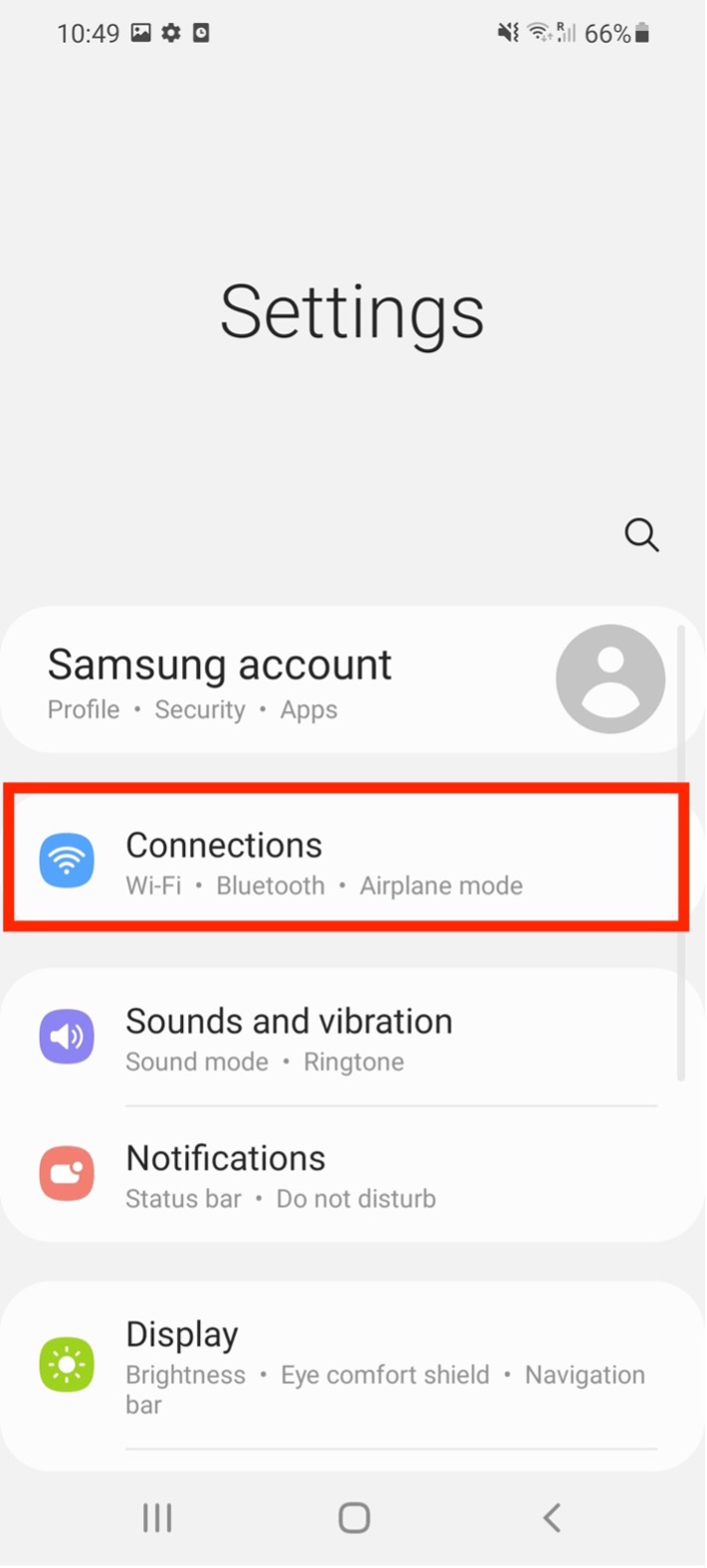
Step 1: Open Settings > Connections
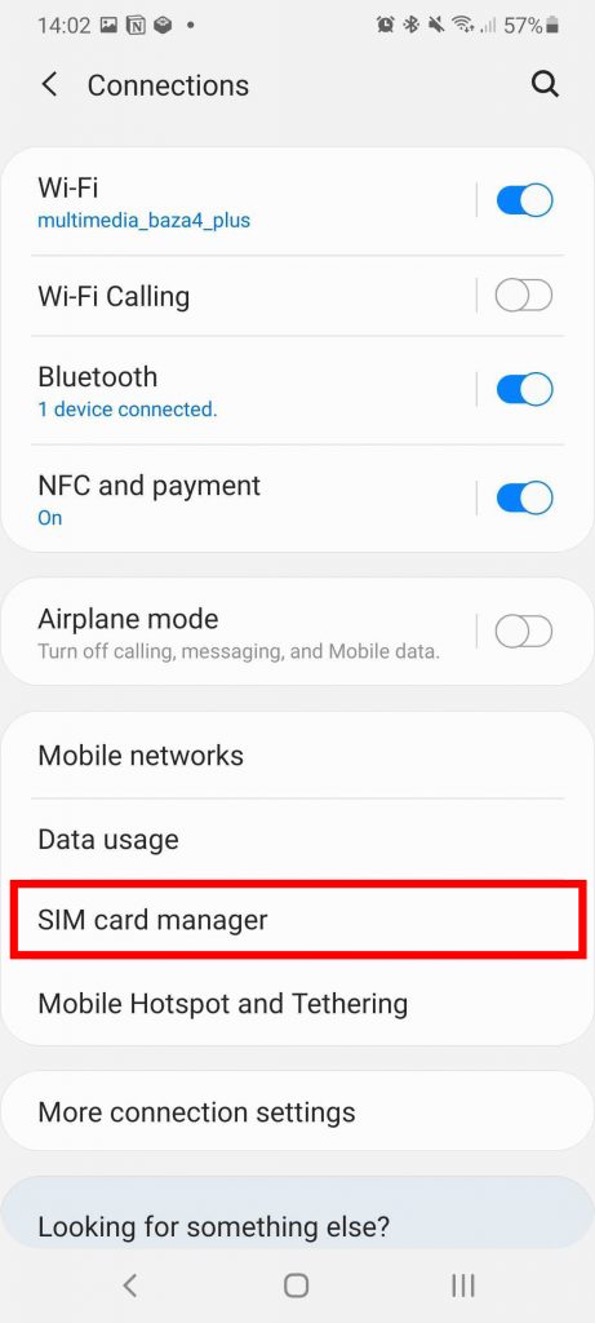
Step 2: Tap SIM Card Manager
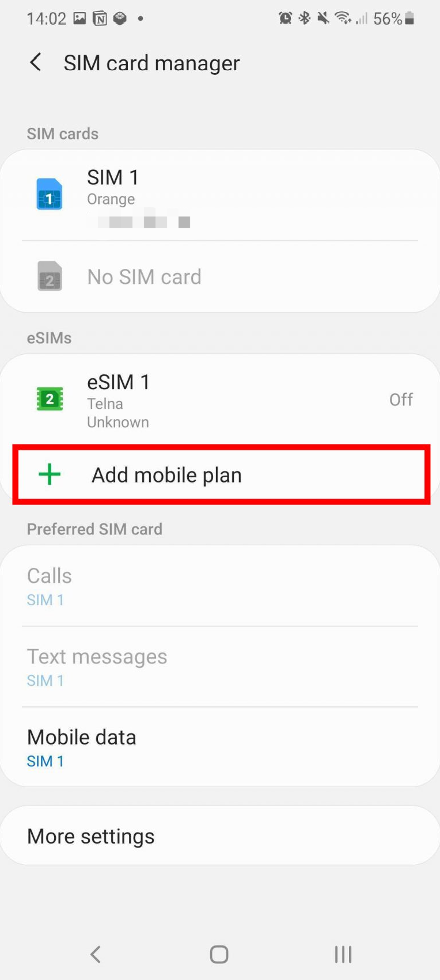
Step 3: Select "Add Mobile Plan"
Step 4: Choose "Add Using QR Code"
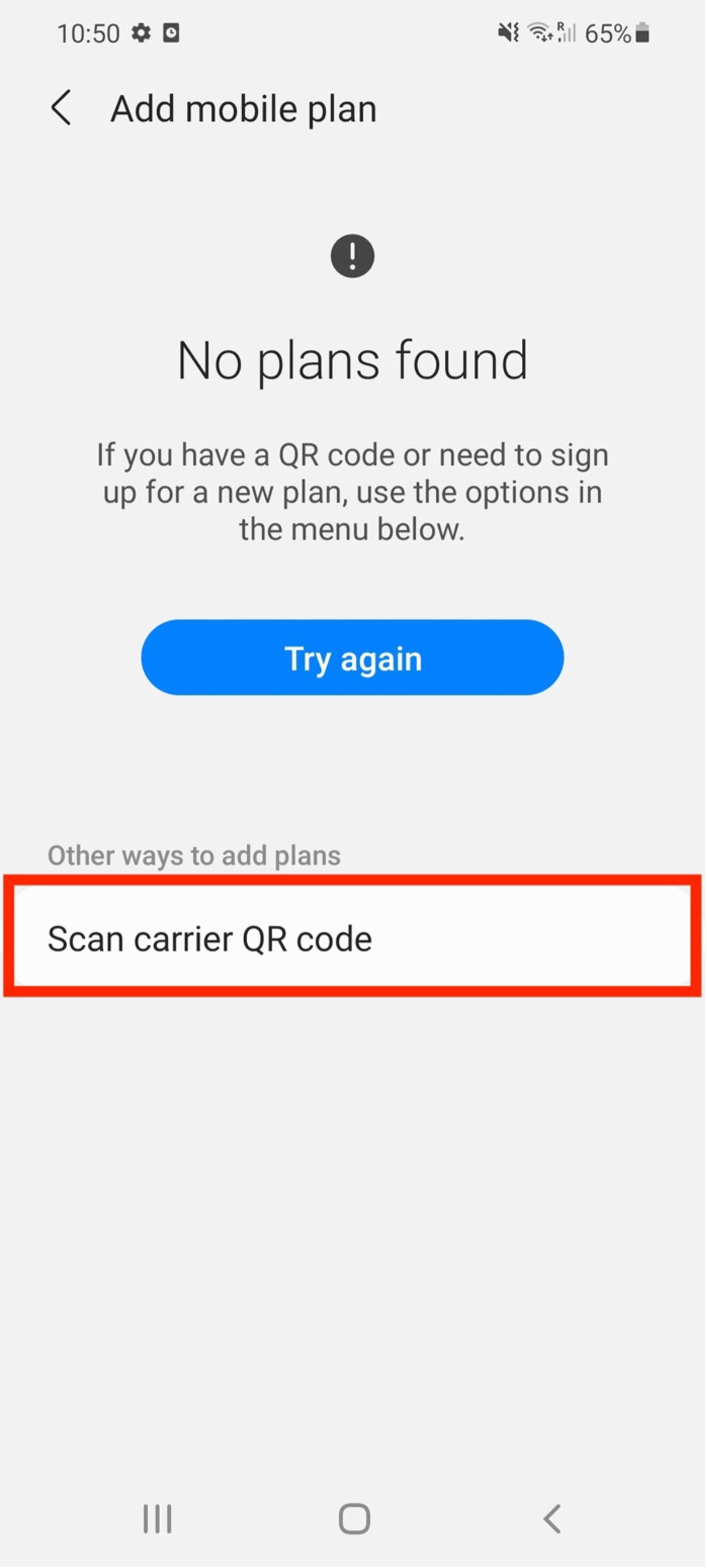
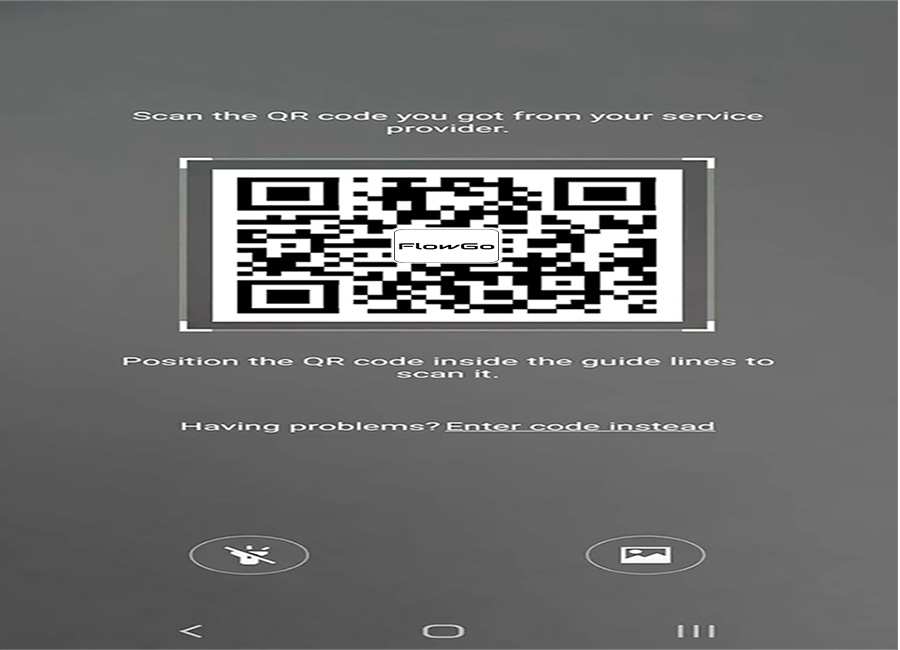
Step 5: Scan the eSIM QR Code
Your Samsung camera opens automatically. Point it at the QR code from your eSIM provider and follow the prompts.
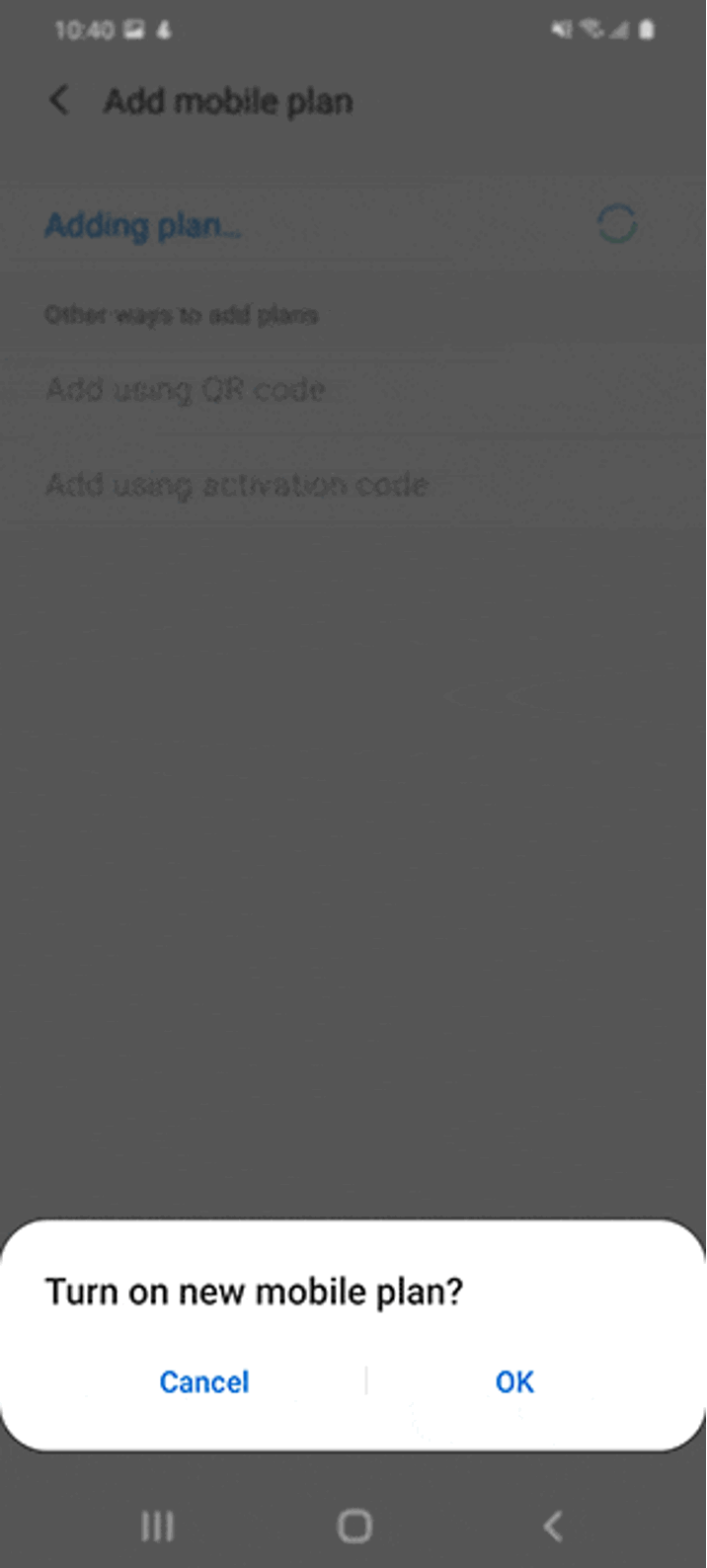
Step 6: Wait for Profile Download
The eSIM profile downloads and adds to your phone. Keep your Samsung connected to Wi-Fi — this usually takes 10-30 seconds.
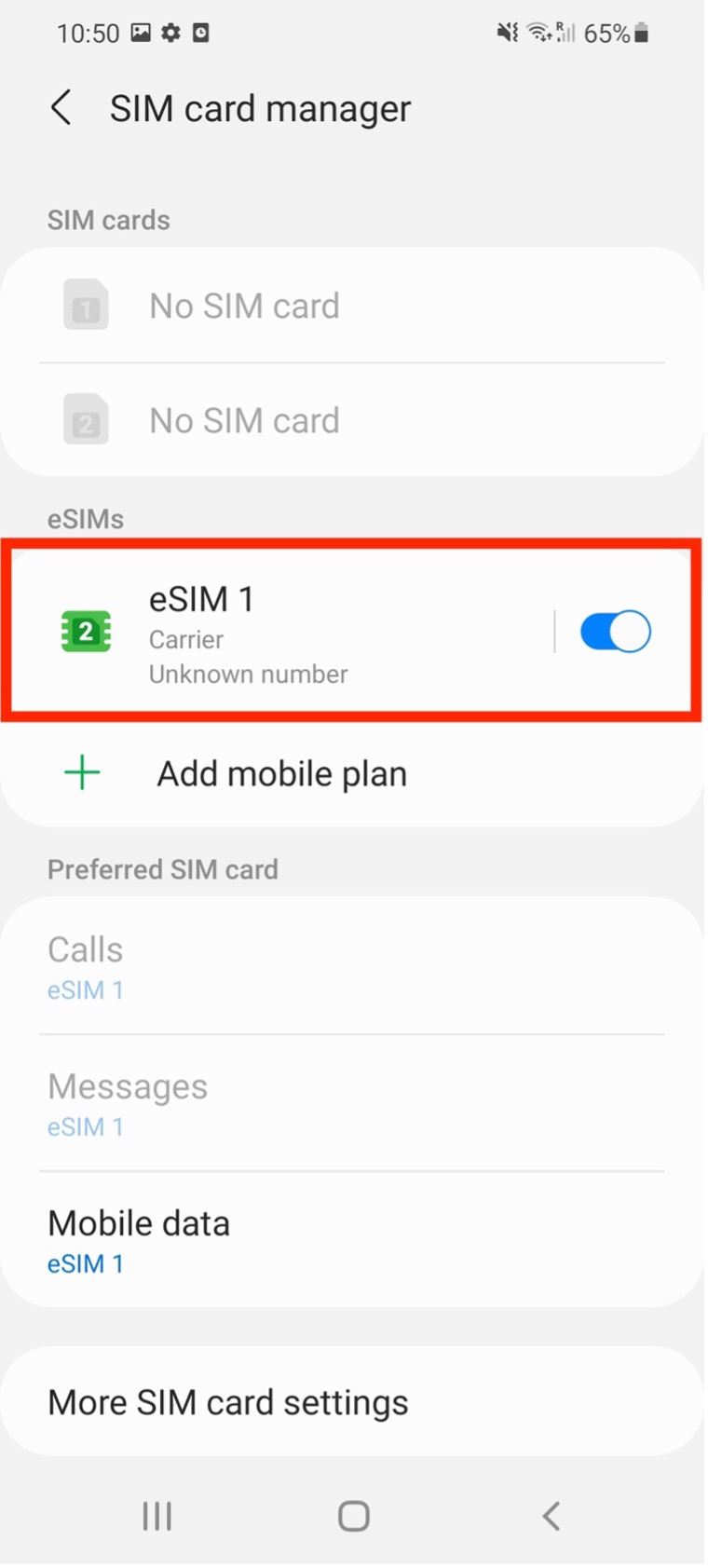
4. How to Activate Mobile Data on Your Samsung eSIM
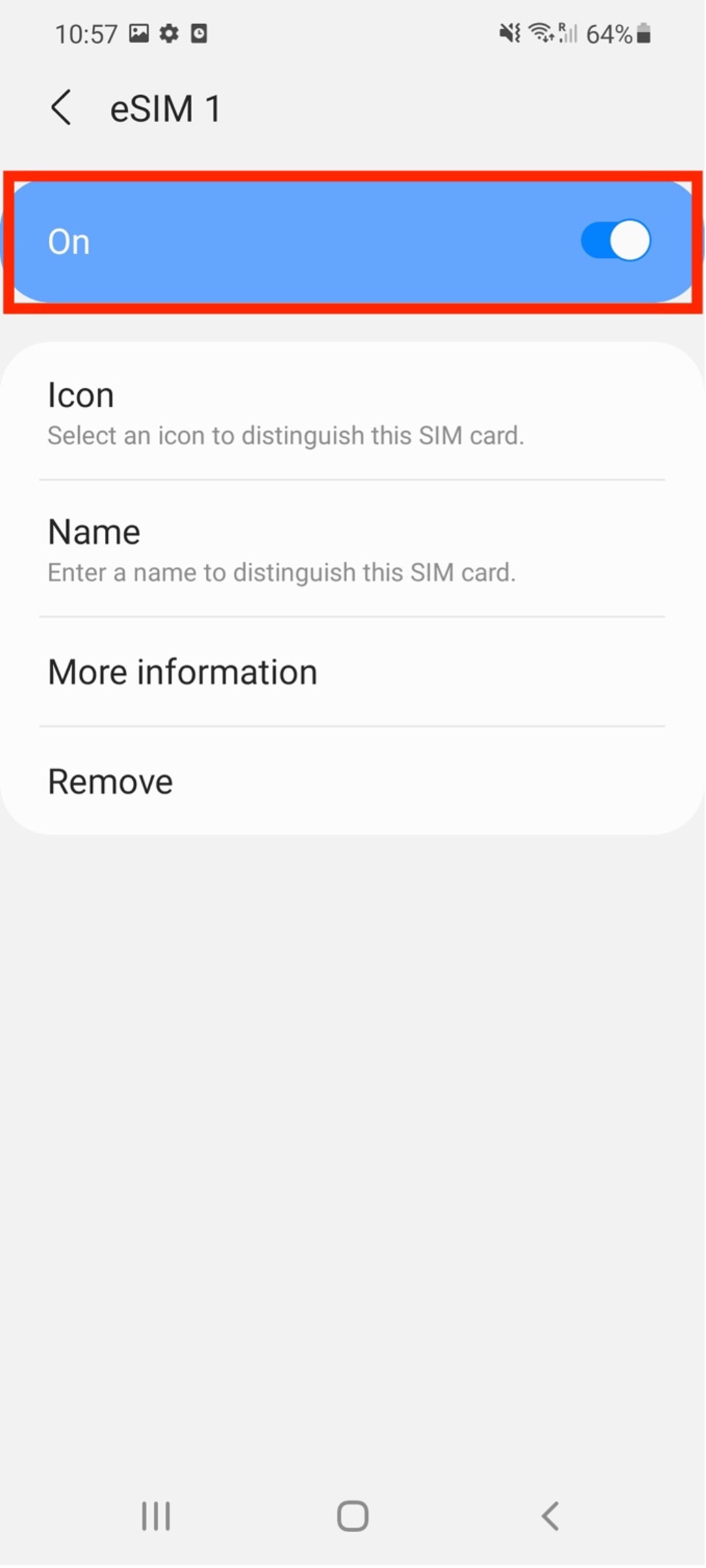
- Go to Settings > Connections > SIM Card Manager
- Select your new eSIM and toggle it On
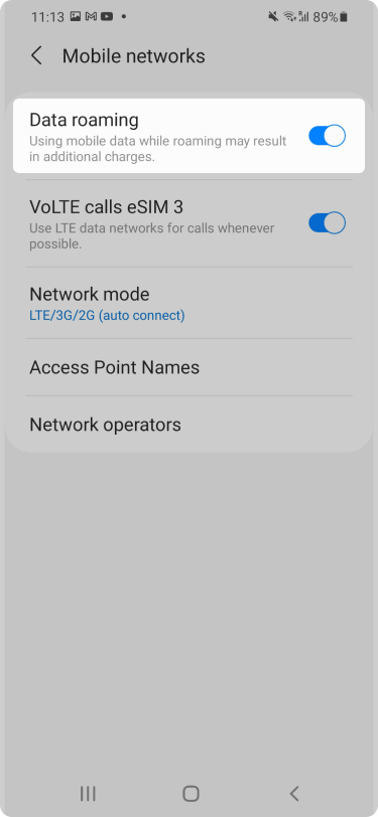
- Go to Settings > Connections > Mobile Networks
- Enable Data Roaming (required for most travel eSIMs)
Set up and ready to travel?
Your Samsung Galaxy is now eSIM-ready. Browse FlowGo plans for your destination:
Browse Travel eSIM Plans5. Samsung eSIM Troubleshooting
If your eSIM doesn't activate or mobile data isn't working:
- Restart your Samsung phone after installing the eSIM profile
- Confirm you're connected to Wi-Fi during installation
- Verify the QR code hasn't already been used
- Check that Data Roaming is enabled (required for travel eSIMs)
- In SIM Card Manager, ensure the eSIM is toggled On and set as your data line
- Try manual network selection: Settings > Connections > Mobile Networks > Network Operators, turn off auto-select and pick an available network
Still stuck? Contact FlowGo support with your order ID and a screenshot of your SIM Card Manager screen.
6. FAQ: Dual eSIM & Network Selection
Can I use two eSIMs at the same time on Samsung Galaxy?
Some Galaxy Z Fold/Z Flip models support one physical SIM + one eSIM active simultaneously. Most Samsung models let you store multiple eSIM profiles, but only one can be active for mobile data at a time. Check your exact setup in Settings > Connections > SIM Card Manager.
How do I pick the best network?
FlowGo eSIM supports manual network selection in most destinations. To switch networks:
- Go to Settings > Connections > Mobile Networks > Network Operators
- Turn off Select automatically
- Choose an available supported network from the list
This is helpful if your Samsung keeps switching between carriers or can't connect automatically.
What if my Samsung model isn't on the list?
See our full Samsung eSIM compatible devices page with every supported model by region and carrier. Or check your phone directly: Settings > Connections > SIM Card Manager — if you see "Add eSIM," you're good to go.