

How to Install and Activate eSIM on Samsung Galaxy
This guide explains how to install, activate, and set up an eSIM on Samsung Galaxy devices. Before scanning your eSIM QR code, make sure your Samsung phone is network unlocked, connected to a stable Wi-Fi network, and supports eSIM.
If you are not sure whether your Samsung model supports eSIM, use the quick compatibility check below before starting the setup process.
Table of Contents
1. What you need before activating eSIM on Samsung
2. Quick Samsung eSIM compatibility check before activation
3. When should I set up my eSIM for traveling internationally?
4. How to install an eSIM on Samsung Galaxy
5. How to activate an eSIM on Samsung Galaxy
6. Samsung eSIM activation troubleshooting
7. How do I find the best network provider in my area?
8. Can I use two eSIMs at the same time on Samsung Galaxy?
What You Need Before Activating eSIM on Samsung
- A stable internet connection, preferably Wi-Fi. You need Wi-Fi to download the eSIM profile properly to your Samsung device.
- A QR code or eSIM installation details from your eSIM provider.
- A Samsung Galaxy device that supports eSIM.
- A network-unlocked Samsung phone, especially if you plan to use an international travel eSIM.
Quick Samsung eSIM Compatibility Check Before Activation
Before you activate an eSIM on your Samsung Galaxy, confirm that your device supports eSIM. Samsung eSIM support can vary by model, country or region, carrier, and software version.
You can also check our full Samsung eSIM compatible devices list if you want to review supported models in more detail.
Quick Lookup Table: Popular Samsung Galaxy Models
Note: Compatibility can vary by region, carrier, and software version. Always verify eSIM support in your Samsung settings before purchasing an eSIM.
| Samsung Series | Model Examples | eSIM Supported? |
|---|---|---|
| Galaxy S Series | S24, S23, S22, S21, S20 | ✅ Yes for most recent models |
| Galaxy Z Series | Z Fold, Z Flip models | ✅ Yes for most recent models |
| Galaxy Note Series | Selected Note models | ⚠️ Varies by model and region |
| Galaxy A Series | Selected A Series models | ⚠️ Varies by region, carrier, and model |
How to Check eSIM Support in Samsung Settings
The most reliable way to confirm eSIM support is to check your Samsung phone settings directly:
- Go to Settings > Connections.
- Tap SIM manager or SIM card manager.
- Look for Add eSIM or Add mobile plan.
If you see this option, your Samsung phone is likely eSIM-ready. If you do not see this option, your device, region, carrier, or software version may not support eSIM.
Samsung eSIM support varies by model and region. Most recent Galaxy S and Galaxy Z Series devices support eSIM, while some Galaxy A Series models only support eSIM in selected regions. Always check for the Add eSIM or Add mobile plan option before purchasing a travel eSIM.
Ready for your trip?
If your Samsung device is compatible, you can choose a Flow Go travel eSIM before you leave.
When Should I Set Up My eSIM for Traveling Internationally?
💡 Important Tip:
Do not set up your eSIM too early if your plan starts counting from installation or activation.
Each eSIM data plan has a limited number of service days. For many travel eSIMs, the service period starts when the eSIM first connects to the destination network. However, some products may start the validity period immediately after installation or purchase.
Best practice: install and activate your Samsung eSIM close to your travel date, or after you arrive at your destination, depending on the product instructions.
If you are still at home before a business trip or vacation, you may install the eSIM while connected to stable Wi-Fi, but do not turn it on for mobile data until you are ready to use it. Always check the product details because some eSIM plans may start billing immediately after purchase or installation.
⏱️ How Service Days Are Calculated:
The service period usually starts when the eSIM is activated or when it first connects to the supported destination network. For example, if you activate a 1-day eSIM in Berlin at 14:00 local time, the plan will usually expire 24 hours later at 14:00 the next day.
How to Install an eSIM on Samsung Galaxy
Follow these steps to install an eSIM on your Samsung Galaxy using a QR code.
Step 1: Go to Settings > Connections
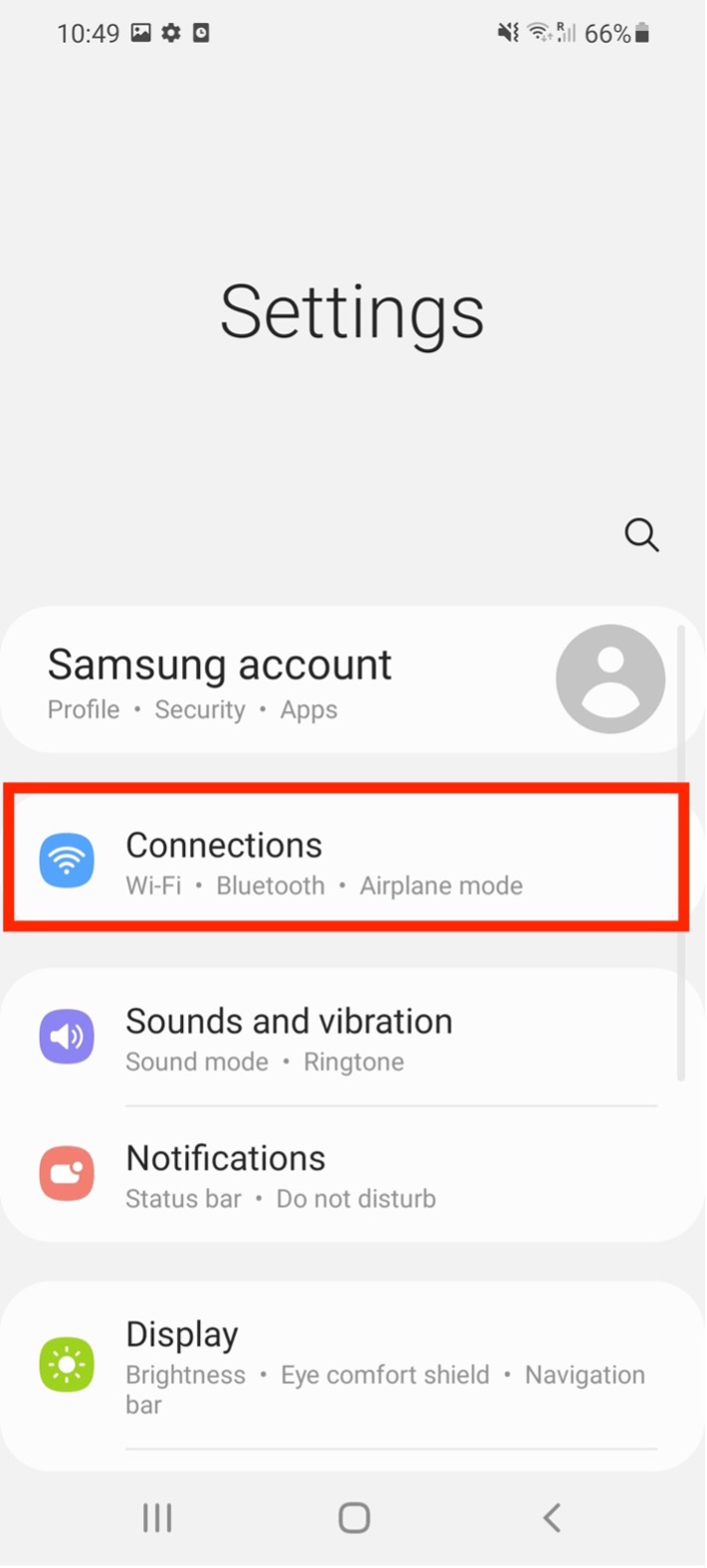
Step 2: Tap SIM card manager
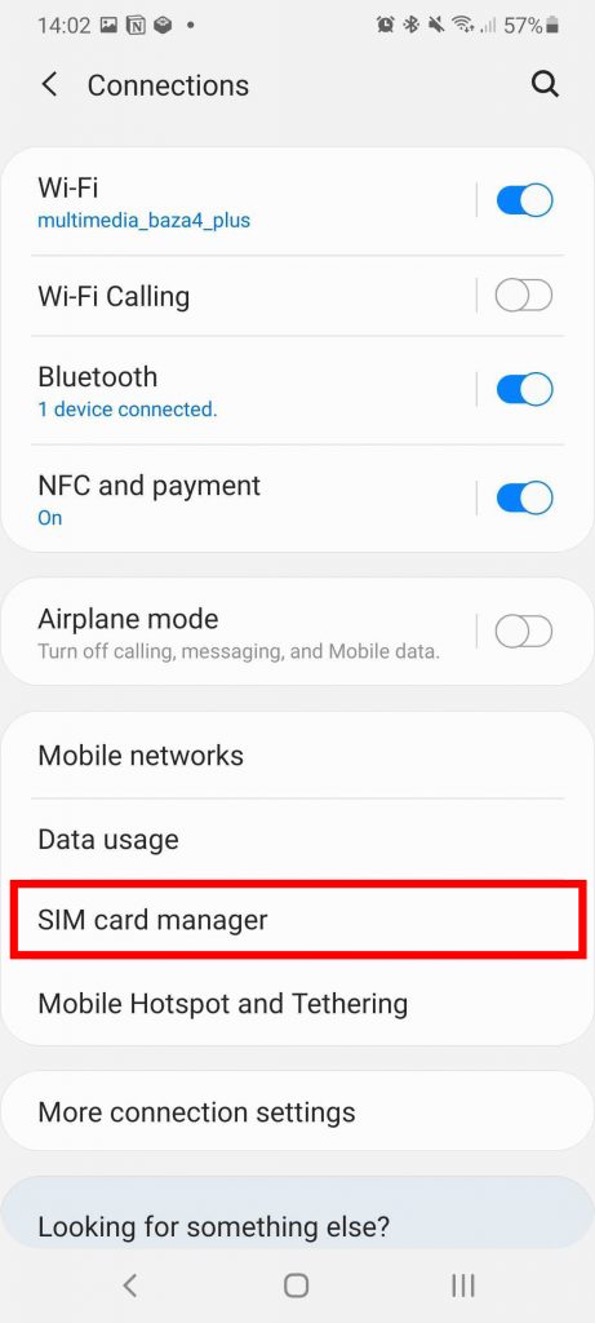
Step 3: Select Add mobile plan
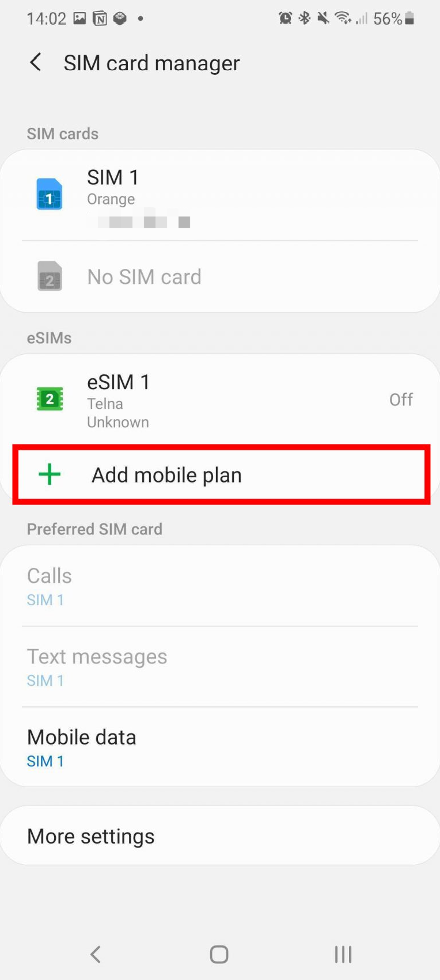
Step 4: Tap Add using QR code
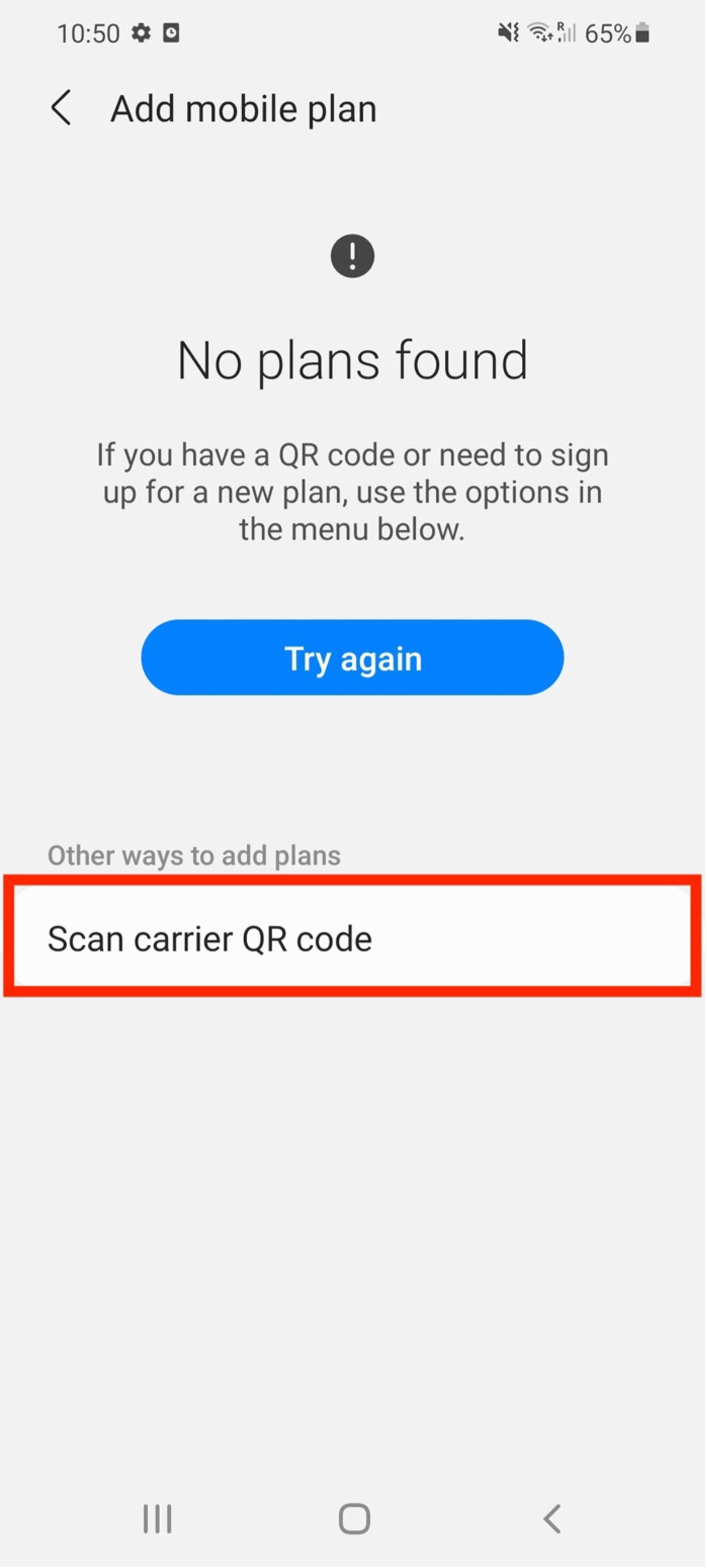
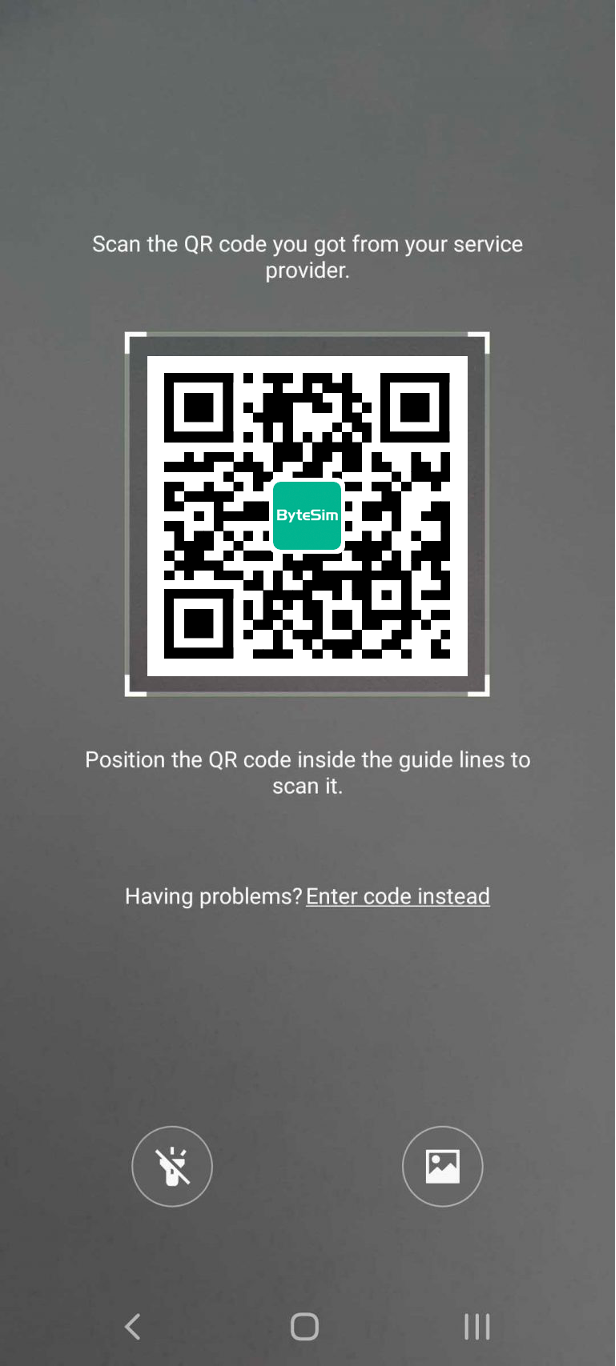
Step 5: Scan the eSIM QR code
Your Samsung camera will open automatically. Scan the QR code provided by your eSIM provider and follow the on-screen instructions.
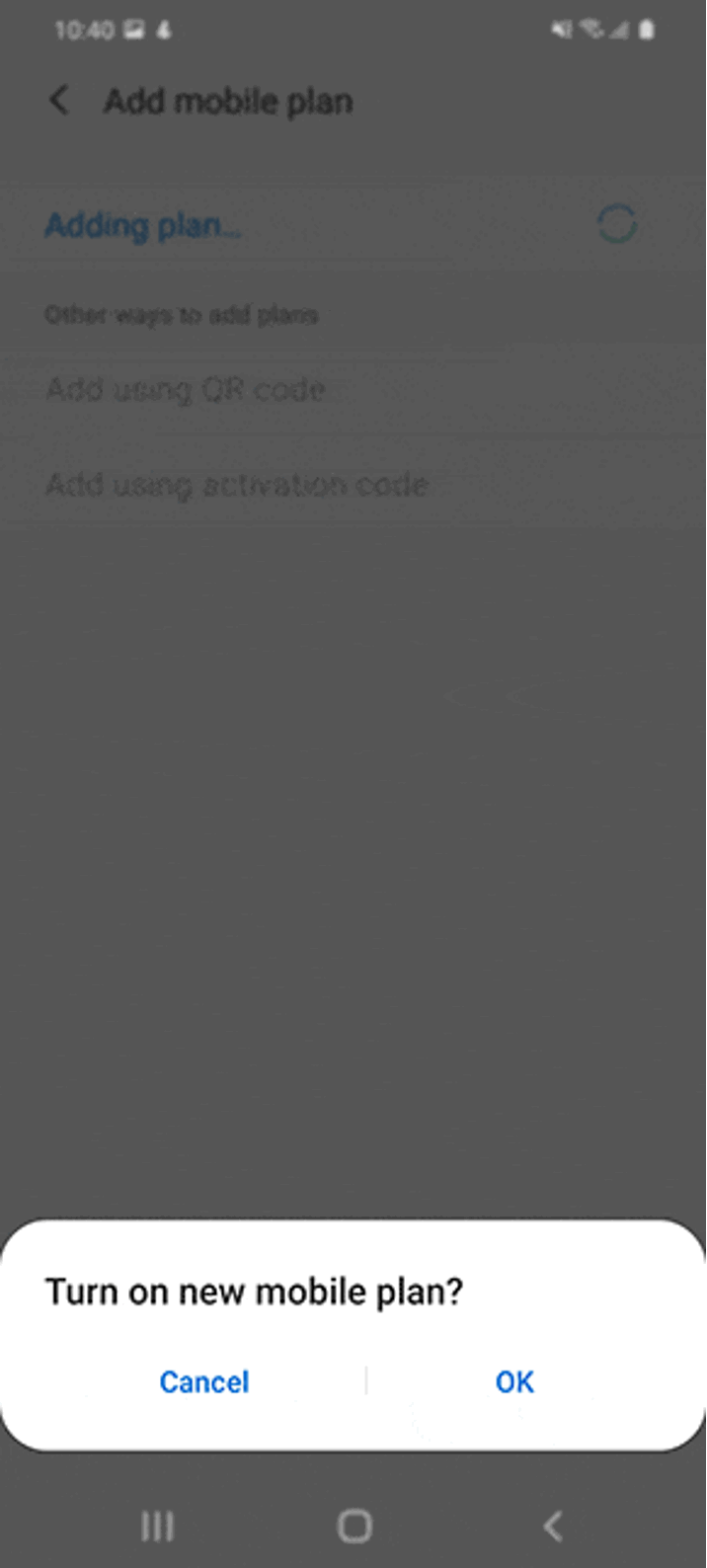
Step 6: Wait for the eSIM profile to download
Your mobile plan will be downloaded and added to your Samsung Galaxy. Keep your phone connected to Wi-Fi during this process.
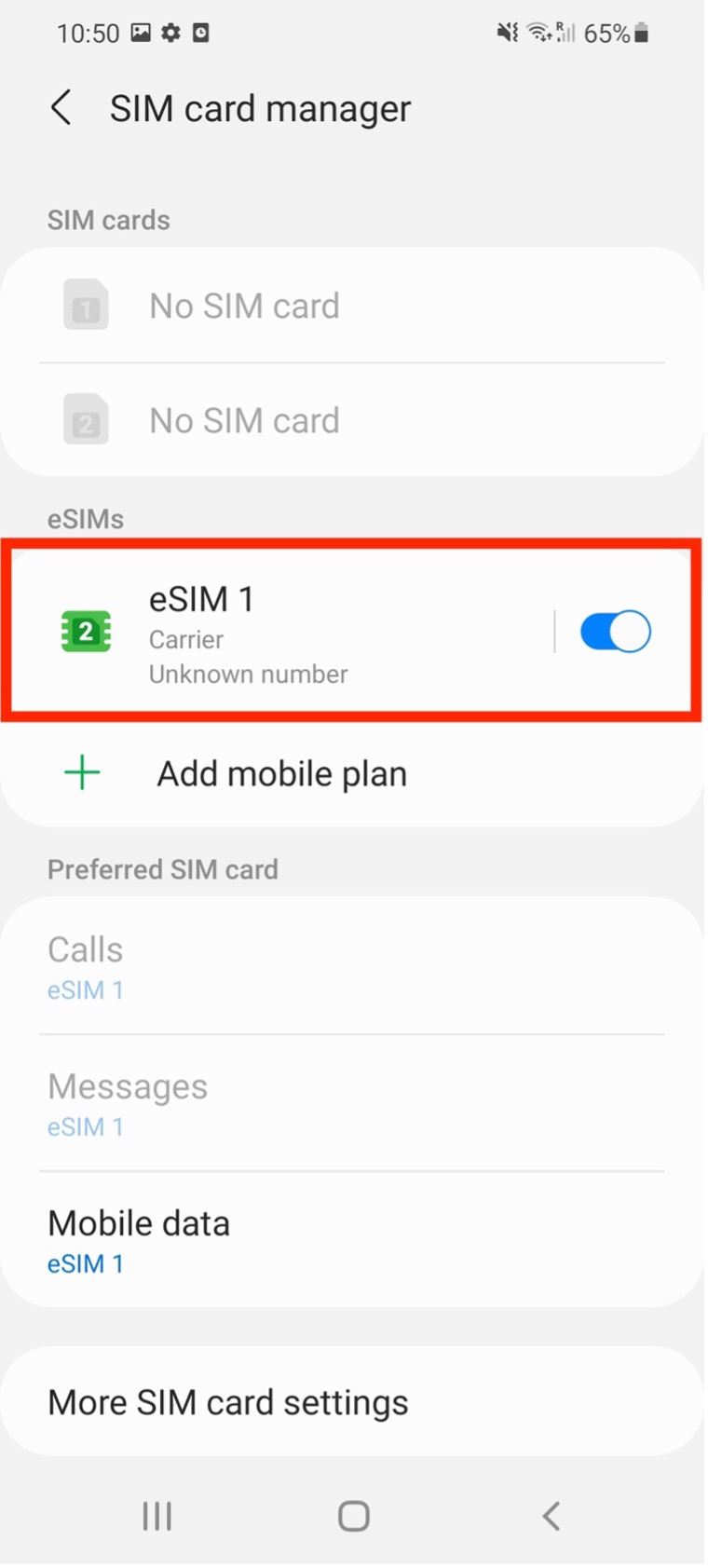
How to Activate an eSIM on Samsung Galaxy
After installing your eSIM profile, follow these steps to activate your Samsung eSIM for mobile data.
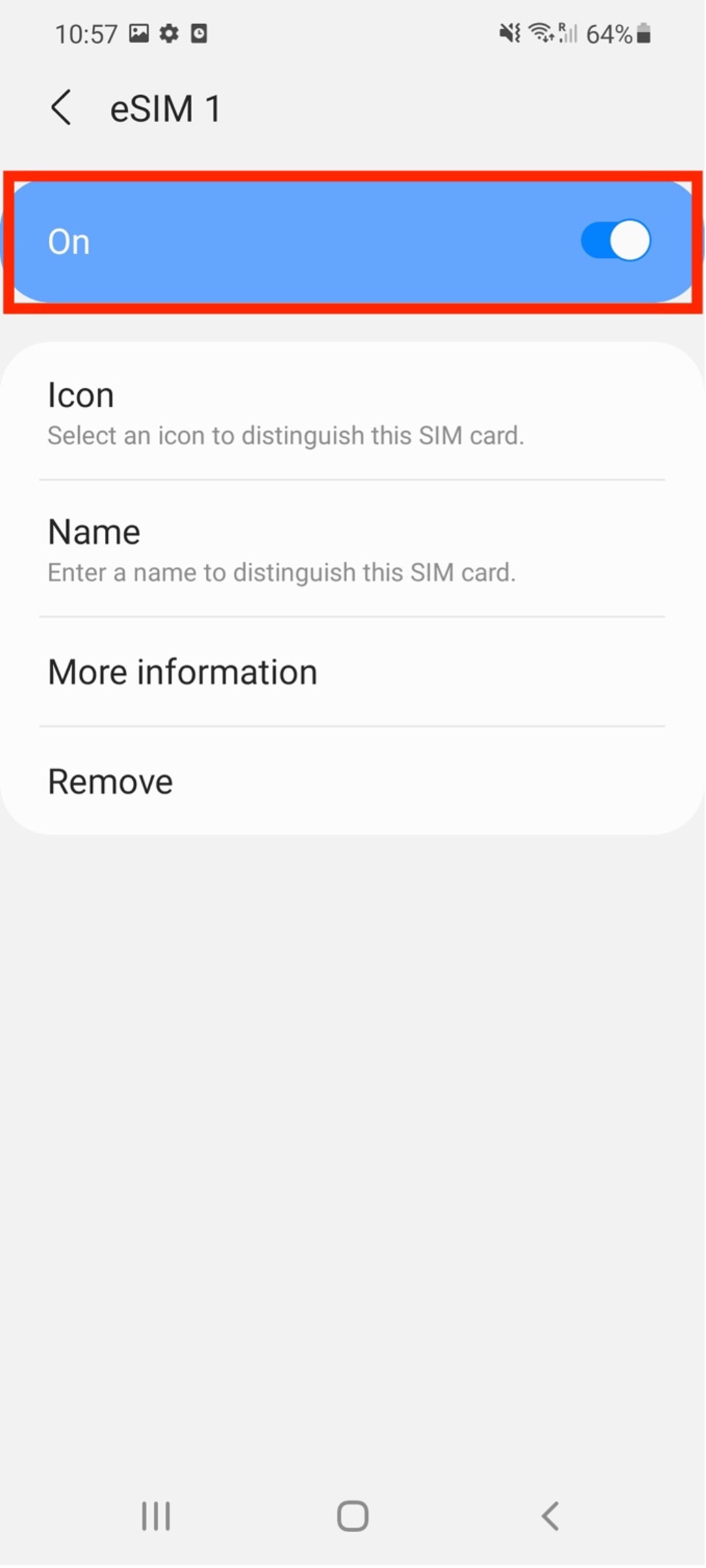
- Go to Settings > Connections > SIM Card Manager.
- Select your newly installed eSIM.
- Turn on the eSIM under Mobile Network.
- Go to Settings > Connections > Data Usage and enable Mobile Data.
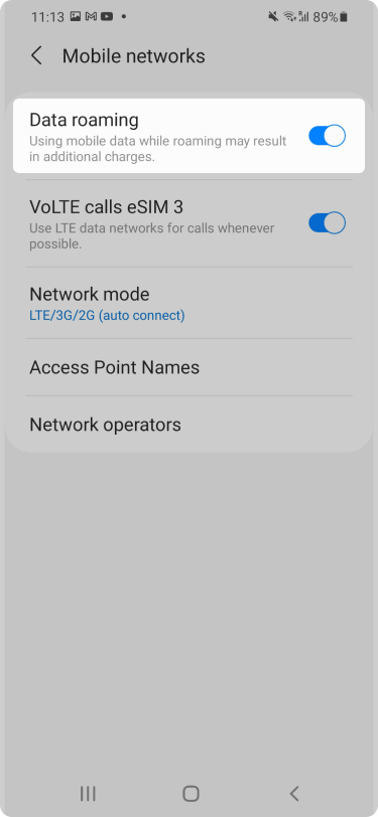
- Go back to Connections > Mobile networks and turn on Data roaming if required for your travel eSIM.
Samsung eSIM Activation Troubleshooting
If your Samsung eSIM does not activate or your mobile data is not working, try the steps below:
- Make sure your Samsung phone is connected to a stable Wi-Fi network during installation.
- Confirm that your Samsung Galaxy device supports eSIM and is network unlocked.
- Check that you scanned the correct eSIM QR code and that the QR code has not already been used.
- Restart your Samsung phone after installing the eSIM profile.
- Go to Settings > Connections > SIM Card Manager and make sure the eSIM is turned on.
- Enable Mobile Data and select the eSIM as your data line.
- Turn on Data roaming if your travel eSIM requires roaming to connect.
- If the eSIM still does not work, contact Flow Go support with your order details and a screenshot of your Samsung SIM manager page.
Frequently Asked Questions About Samsung eSIM
How do I find the best network provider in my area?
Flow Go eSIM allows manual network selection in supported destinations. If your Samsung phone keeps switching between carriers or cannot connect automatically, you can try selecting a network manually.
Go to Settings > Connections > Mobile networks > Network operators, then turn off automatic selection and choose an available supported network.
Can I use two eSIMs at the same time on Samsung Galaxy?
Some Samsung Galaxy devices allow you to store multiple eSIM profiles, but the number of active SIMs or eSIMs depends on the device model and region.
For example, some Galaxy Z Fold and Z Flip models support one physical SIM and one eSIM at the same time. Other Samsung models may let you store multiple eSIM profiles, but only one eSIM can be active for mobile data at a time.
To check your own device, go to Settings > Connections > SIM Card Manager and review the available SIM and eSIM options.