
Premium Network
KDDI / SoftBank
Coverage #1
Data Options
Daily / Total / Unlimited
Flexible Choice
Max Speed
5G / 4G LTE
 High Speed
Technical Specifications
-
Network SelectionFor Daily PlansSoftBank 5G
 Native IP Ultra-Low Latency. Best for Local Apps & Gaming.Total / UnlimitedKDDI 5G + SoftBank 5G
-0.svg?w=32&h=32) Dual CoverageWidest Signal. Auto-switch. Best for Sakura & Rural Areas.
Dual CoverageWidest Signal. Auto-switch. Best for Sakura & Rural Areas. - Plan Type
Data OnlyUse WhatsApp/VoIP for calls. No phone number provided.
- Activation
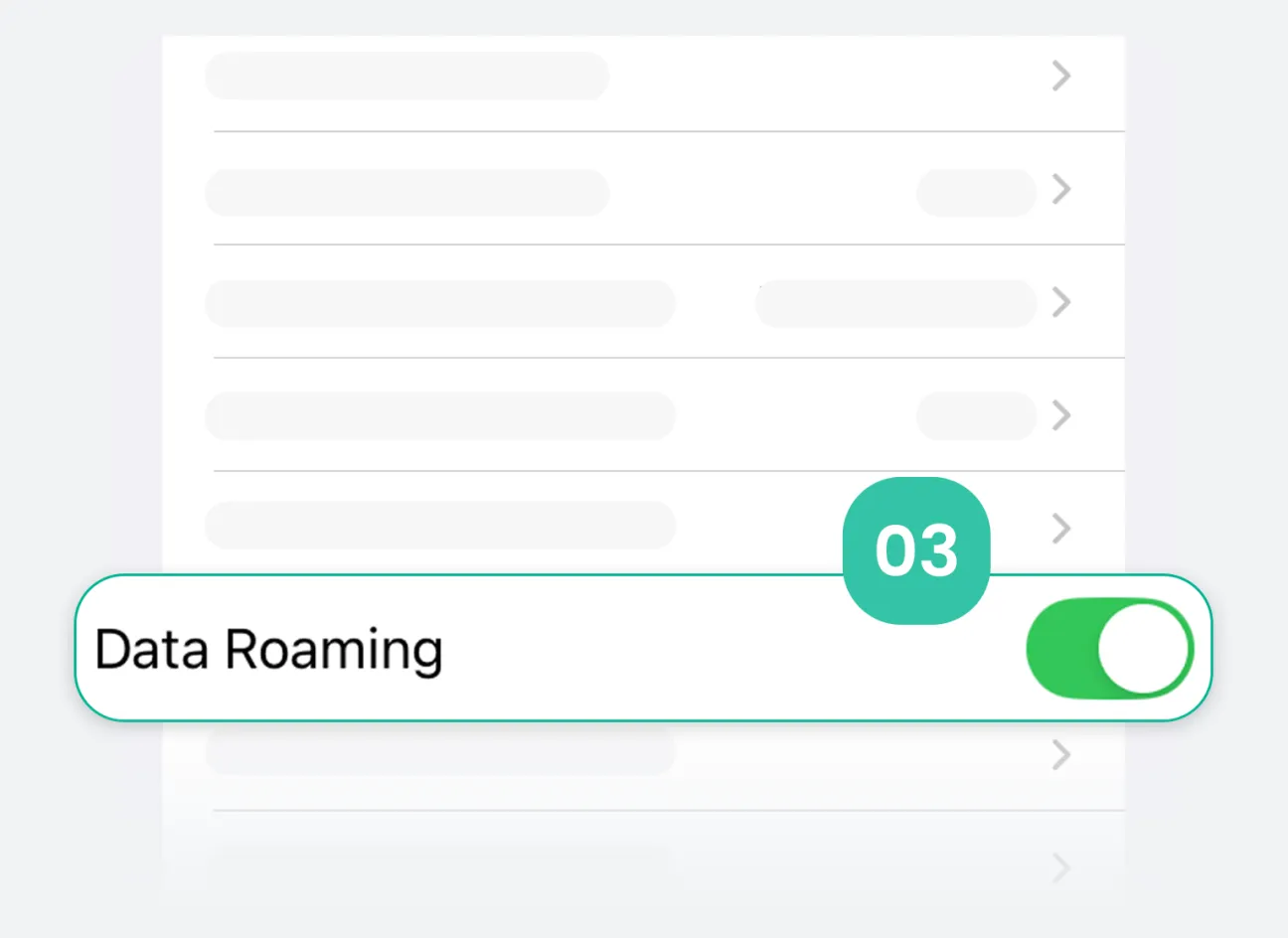
AutomaticAuto-start on arrival; turn on data roaming for FlowGo eSIM.
- Support
24/7 Live SupportInstant help via Livechat & Email.
- ID Verify Not Required
- Hotspot
SupportedShare data with laptop/iPad.
- Speed Policy
For Unlimited (*5G) Plans:Guarantees 1080p HD streaming speeds, even under Fair Usage Policy.For Daily & Total Plans:High-speed 5G data per quota, then Unlimited 128kbps.
- Coverage
Nationwide & ShinkansenCovers Tokyo, Osaka, Kyoto, Okinawa, Hokkaido & Mt. Fuji.
Seamless signal on Bullet Trains & rural areas.
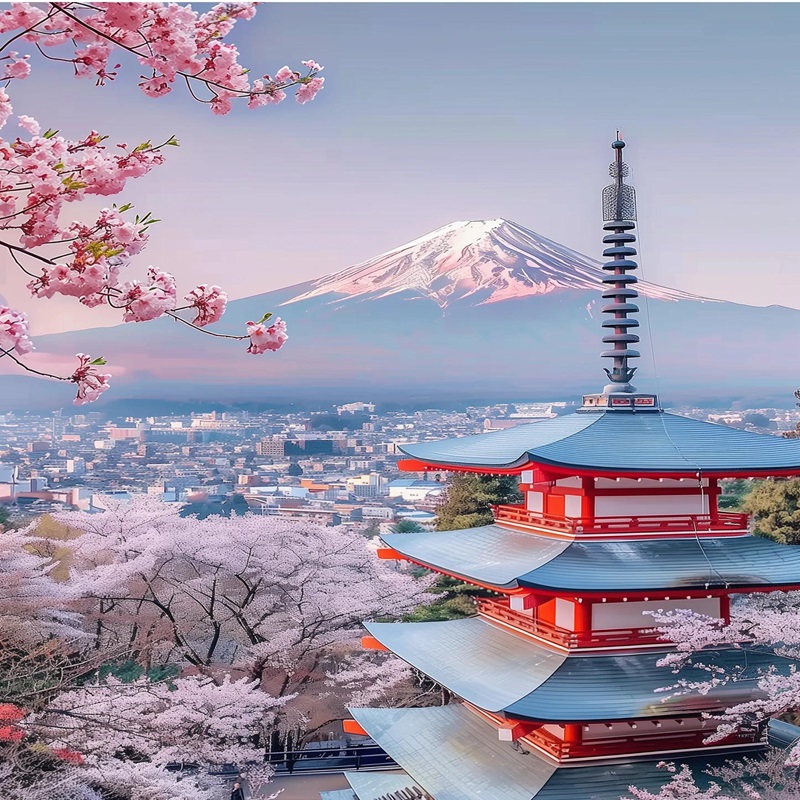
.svg?w=128&h=128) Japan's Best 5G for Sakura Season
Japan's Best 5G for Sakura Season