

【Singapore&Malaysia&Thailand】Unlimited speed digital eSIM cards, starting from just $1.99

Scan the code to activate, and the plane will be able to access the internet upon landing.
Suitable for all travelers: business trips, vacation travel, study abroad, cross-border remote work.
Buy now and open the worry free global link!

[Install eSIM]

If you are using an iPhone with iOS 17.4 or above. (If this doesn't work, please make sure both the App and iOS are updated.)


Scan the QR code or manually enter the eSIM information to install:

1. Open the customer service email, find the QR code attachment, and save it to your phone. (iOS 17 and above and some Android phones can directly save the QR code image to the phone)

2. Open Cellular Network (iOS) or SIM Card Management (Android) in Settings

3. When your phone is connected to the Internet, click "Add Cellular Network" (iOS) or "Add SIM Card Management" (Android) and scan the QR code to install.

4. If you cannot scan the code, you can enter the "SM-DP + Address and Activation Code" in the booking voucher to install it

5. If you fail in step 3 or 4, your phone may be locked by the operator in Permanent address(unable to use other operators' network bands). You need to contact the operator to unlock it before using eSIM.


[Using eSIM]

1. Turn off the main card and turn on the eSIM network switch

2. Enable cellular network (iOS) or SIM card (Android)

3. Turn on data roaming

4. If you still cannot access the Internet after the above settings, please set the APN and restart. See the message below for details.


[About APN]

1. If you purchase an eSIM that covers multiple countries/regions, when you arrive in a new area, if you cannot connect to the Internet, please manually switch the APN (it will switch automatically under normal circumstances)

2. Setting path: Cellular number--Cellular data network, or mobile network--Mobile data network, or mobile service--Mobile data network

3. Enter the APN: Contact customer service to obtain the APN link.Customer service emailflowgoesimcs@gmail.com)

4. Restart your phone

$1.99 USD
$11.99 USD
Tasse incluse Calcola la spedizione al momento del pagamento
Data
Days

Why people choose FlowGo eSIM?

Why people choose FlowGo eSIM?

Setup FlowGo eSIM in minutes

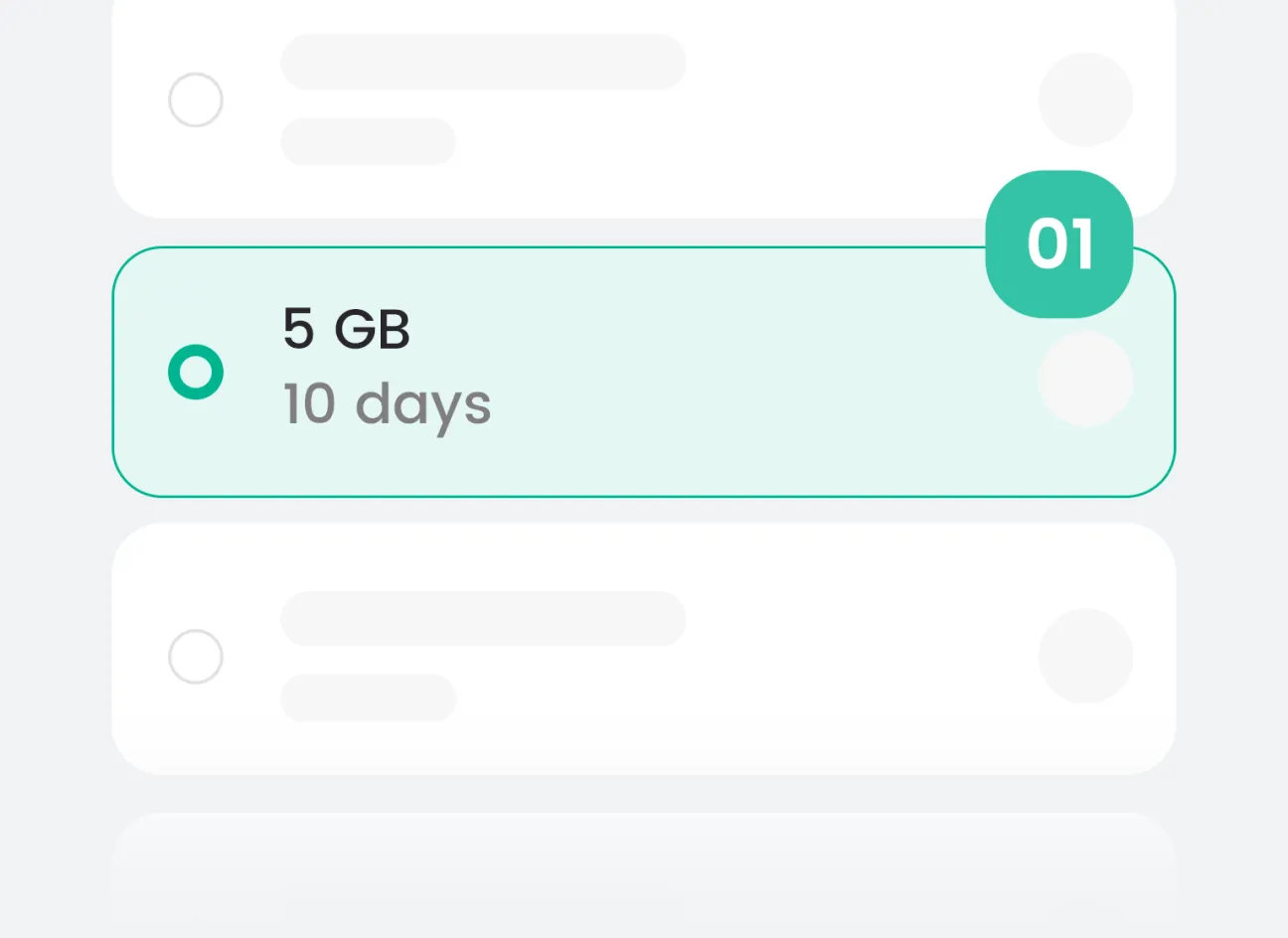
Check & Chose
Verify your phone is eSIM-compatible and unlocked. Pick the plan that fits your trip and check out.
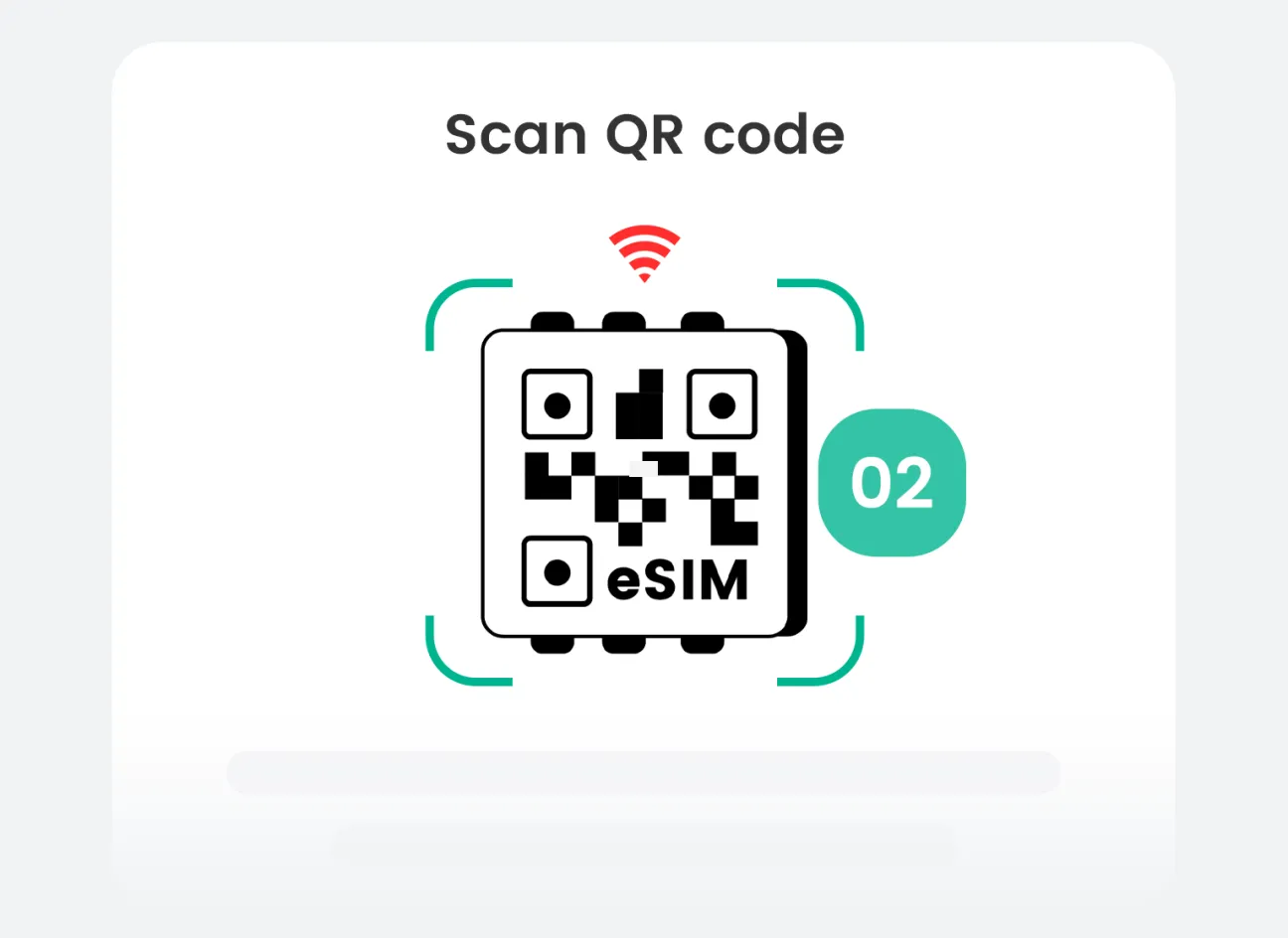
Install Before You Fly
We email your eSIM instantly. On stable Wi-Fi, scan the QR for one-tap install.
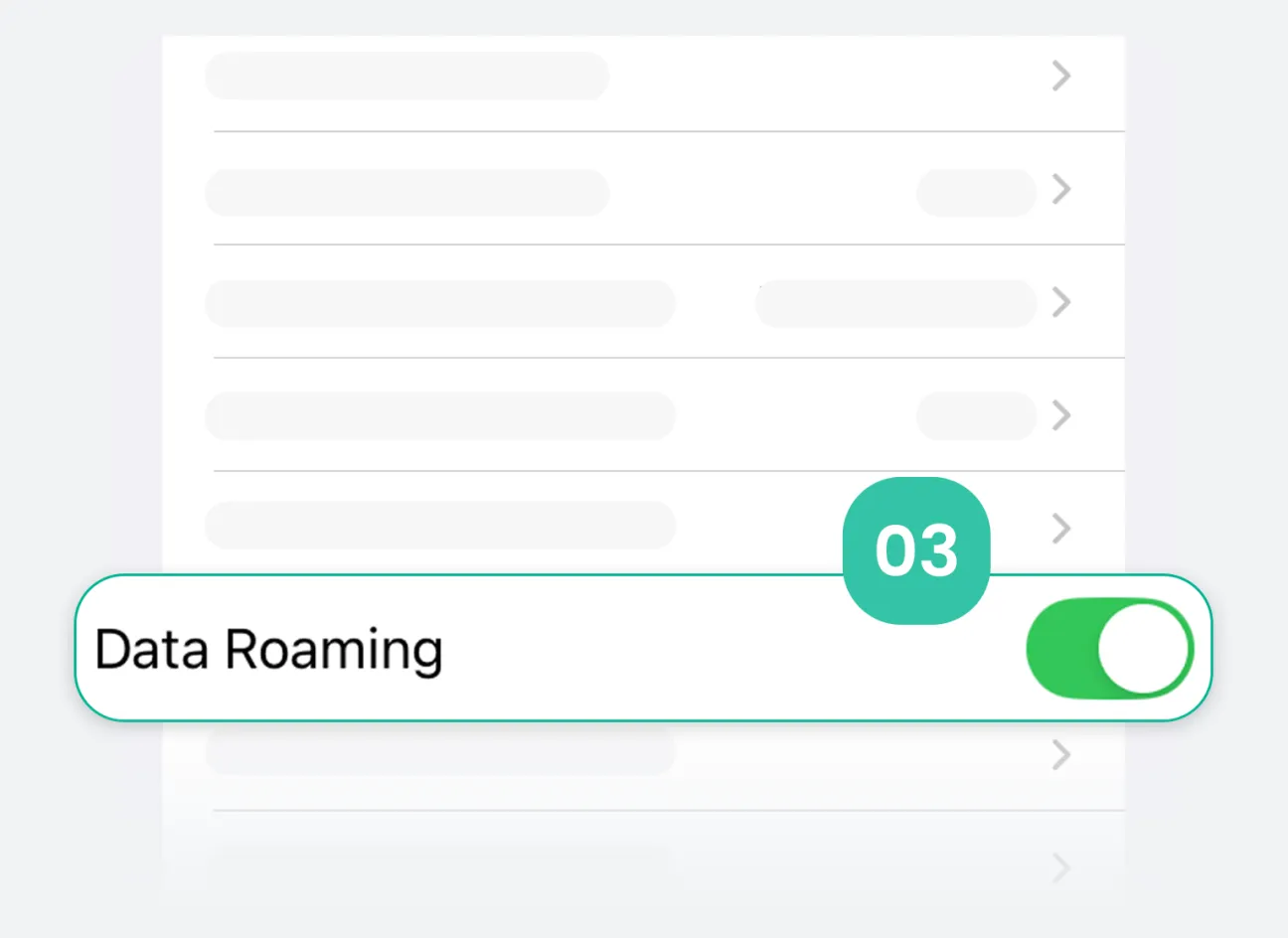
Arrive & Activate
On arrival, enable the FlowGo eSIM line in Settings and, turn Data Roaming: ON. It auto-connects and activates.
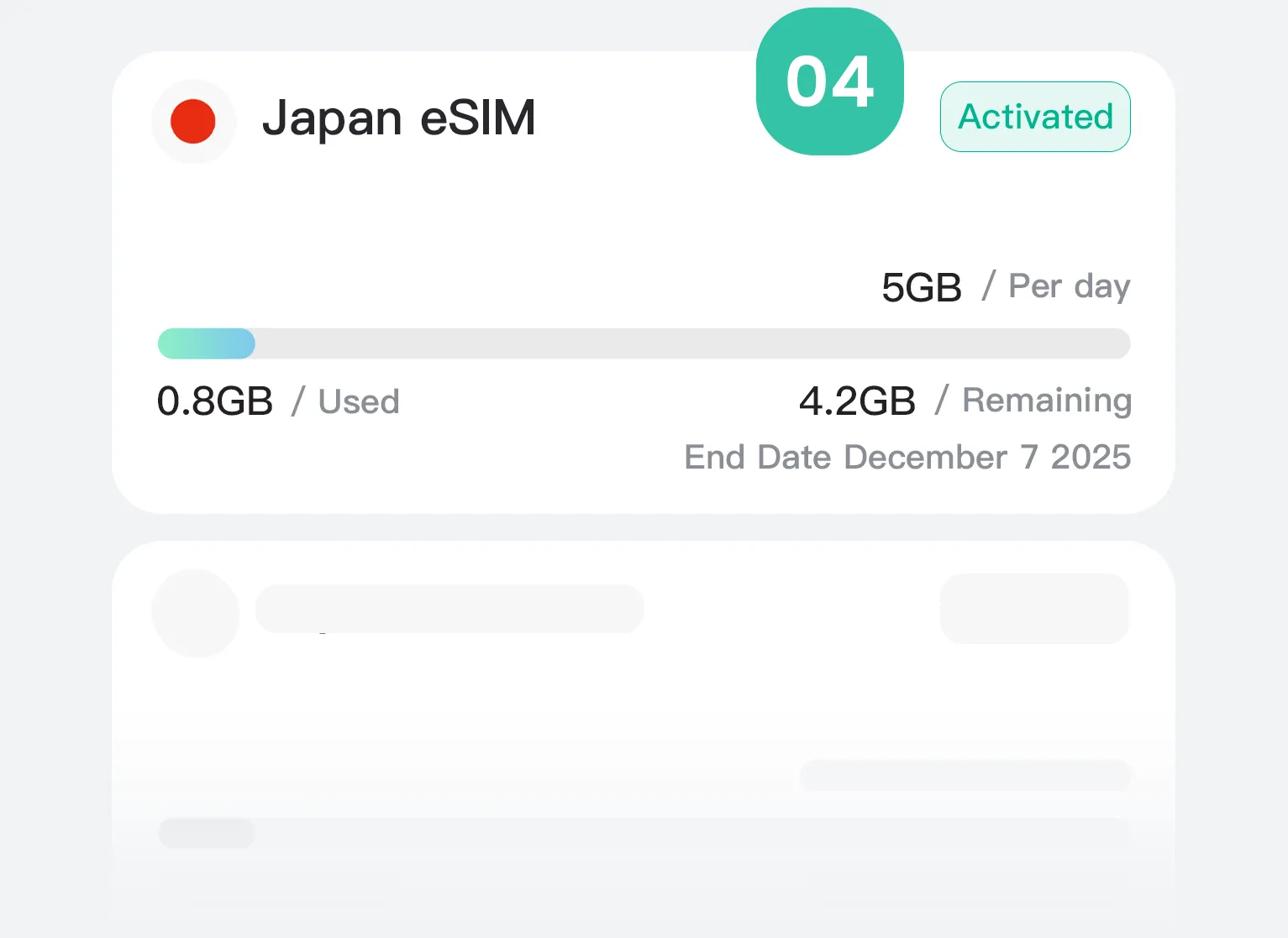
Manage & Add More
Need track available data & days in an App? Coming soon...
Check & Chose
Verify your phone is eSIM-compatible and unlocked. Pick the plan that fits your trip and check out.
Install Before You Fly
We email your eSIM instantly. On stable Wi-Fi, scan the QR for one-tap install.
Arrive & Activate
On arrival, enable the FlowGo eSIM line in Settings and, turn Data Roaming: ON. It auto-connects and activates.
Manage & Add More
Need track available data & days in an App? Coming soon...
1 / 4

Frequently Asked Questions

How to activate my eSIM card?

1. Locate your eSIM information: Open the confirmation email we sent you. A clear QR code will be present in the attachment or email body.

2. Start scanning:
  • On iPhone: Go to Settings > Cellular > Add eSIM. When the scanning window appears, scan the QR code directly. Tap "Continue," wait for activation to complete, and after successful activation, select Business, turn off Wi-Fi, select "Voice & Data," change "Automatic 5G" to "LTE," go back and turn on "Data Roaming," go back to the previous screen, change "Cellular Data" to Business, and you should see "LTE" displayed in the upper right corner to use the network.
  • On Android: Save the QR code, go to Settings > Connections > SIM Manager (or Networks & Internet > Mobile Networks > ... Add a carrier. Select "Add eSIM," scan the QR code, select the saved QR code for recognition, and select "Add" after successful recognition. After successful addition, turn off WiFi selection, return to the connection page, select mobile network, enable data roaming, and restart the network to use the service.

3. Enable Mobile Data: After activation, ensure that in "Cellular" settings, the "Data Roaming" option is enabled for your newly added [your carrier name] number. This is a crucial step for using data services globally.

Can I share my hotspot with my friends?

Yes, please check if the "Personal Hotspot" option is enabled for your eSIM number in your phone's "Cellular" settings.

Will the data be used before reaching the destination?

No, the system will detect your destination and will only start using it after you arrive.

Request a refund?

Unactivated eSIM: If your purchased eSIM data plan is not yet activated, you can apply for a refund within 30 days of purchase. Please provide your order number, and we will process your request.

Activated eSIM: Once the eSIM plan is activated and in use, we cannot provide a refund according to the terms of service. However, you can disable or delete the eSIM configuration in your phone settings at any time.

If you require assistance for special reasons (such as duplicate purchase, activation failure, etc.), please provide your order number and a detailed explanation of the situation. We will review your case individually and respond to you as soon as possible.

Carrello

Caricamento