

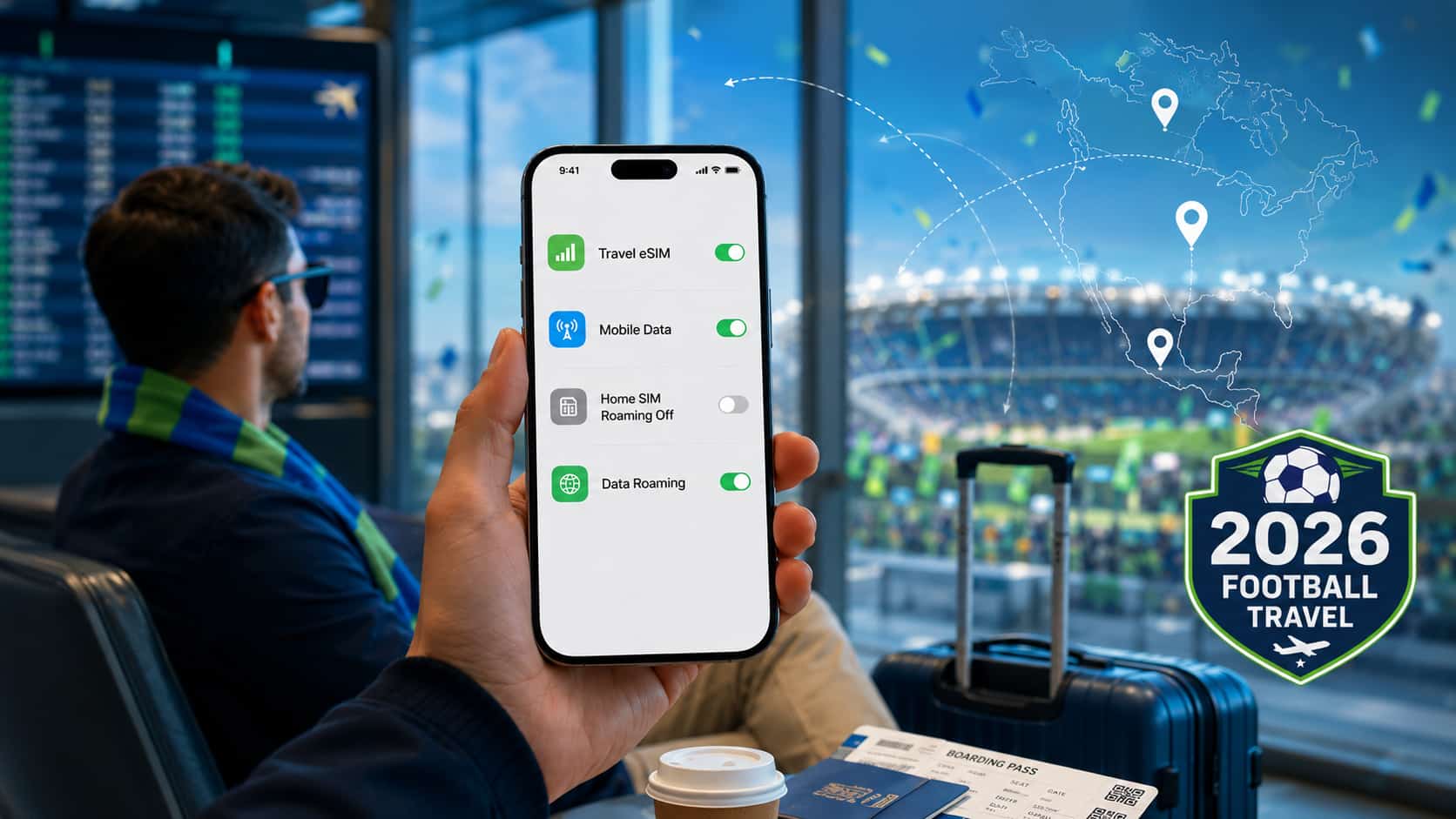
World Cup 2026 Travel Connectivity Guide
How to Avoid Roaming Charges During World Cup 2026
Going to the USA, Canada or Mexico for World Cup 2026? Here is a practical, human-friendly guide to setting up your phone, using a travel eSIM, and reducing the risk of surprise roaming charges from your home carrier.
Important note: FlowGo is not affiliated with FIFA, the World Cup, or any tournament organizer. This article is an independent travel connectivity guide for visitors planning trips to the United States, Canada, and Mexico during World Cup 2026.
Quick Answer
The simplest way to reduce roaming charge risk during World Cup 2026 is this: use your travel eSIM for mobile data, and make sure your home SIM is not allowed to use roaming data unless you intentionally want it to.
If your trip includes the USA, Canada, Mexico, or more than one host country, you can review the FlowGo USA, Canada and Mexico eSIM. Before buying, check coverage, data options, validity, activation rules, hotspot support, and device compatibility.
The most important setting is not just “roaming on or off.” The real question is: which SIM line is using mobile data?
5-Minute Setup Checklist Before You Use Mobile Data Abroad
If you are at the airport, in a hotel lobby, or already on your way to a match, start here. These are the settings most travelers should check first.
- Install your travel eSIM using the QR code or manual details from your provider.
- Set the travel eSIM as your mobile data line so your phone uses it for internet access.
- Turn off data roaming on your home SIM if you do not want your home carrier to provide roaming data.
- Turn on data roaming for the travel eSIM if the plan instructions require it. Some travel eSIMs need this to connect.
- Turn off automatic data switching so your phone does not quietly switch back to your home SIM.
- Check calls and SMS separately. A data-only eSIM may not include traditional calls or texts.
- Save important information offline, including your hotel address, ticket QR code, eSIM instructions, and support contact.
Phone menus can vary by device, carrier, and software version. Always follow the instructions for your specific eSIM plan and check your home carrier’s international roaming fees before travel.
Roaming charges are one of those travel problems people usually think about too late. The trip is over, the photos are great, the match was unforgettable, and then the mobile bill arrives. Nobody wants that kind of souvenir.
During World Cup 2026, your phone will probably work harder than usual. You may need maps at the airport, ride apps after a late match, WhatsApp messages in a crowded area, mobile tickets at the stadium, translation apps at a restaurant, and hotel directions when you are tired. All of that uses data. If your home SIM is still handling that data while you are abroad, your home carrier may charge international roaming fees.
A travel eSIM can help you use mobile data in supported destinations, but it has to be set up correctly. This guide walks through the practical steps in plain language, especially for travelers going to the USA, Canada, and Mexico for World Cup 2026.
Related guides: For the full travel data overview, read our World Cup 2026 eSIM Guide for the USA, Canada and Mexico. If you want to avoid setup issues, also review these World Cup 2026 eSIM mistakes to avoid.
Quick Navigation
- Why roaming charges happen
- The simple rule: travel eSIM for data, home SIM controlled
- Before you travel
- iPhone settings
- Samsung Galaxy settings
- Google Pixel and Android settings
- Why your travel eSIM may need data roaming turned on
- Calls, SMS and verification codes
- After landing checklist
- Common mistakes to avoid
- Choosing a FlowGo eSIM
- FAQ
Why Roaming Charges Happen
Roaming charges can happen when your home SIM connects to a mobile network outside your home country and your carrier bills you for using data, calls, or SMS abroad. This can happen through a daily roaming pass, a pay-per-use rate, or another international roaming policy depending on your carrier.
The tricky part is that your phone may use mobile data in the background even when you are not actively browsing. Weather apps update, maps refresh, messaging apps sync, email downloads, photos back up, and apps check notifications. On a normal day at home, you may not notice. Abroad, those background activities can matter.
Common ways travelers accidentally use roaming data
- The home SIM is still selected as the mobile data line.
- Data roaming is turned on for the home SIM.
- The phone automatically switches data back to the home SIM.
- Apps use data in the background before the traveler notices.
- Cloud backups, photo syncing, or app updates run over cellular data.
- The traveler keeps the home SIM active for calls or SMS without checking carrier fees.
Good to know: Buying a travel eSIM does not automatically disable your home SIM. You still need to choose which SIM handles mobile data.
The Simple Rule: Travel eSIM for Data, Home SIM Controlled
If there is one thing to remember, make it this: your travel eSIM should handle mobile data, and your home SIM should not be allowed to use roaming data unless you deliberately want it to.
This is the part many travelers miss. They install the eSIM, feel ready, and then forget to select it as the mobile data line. In that case, the eSIM may be sitting on the phone, but the phone may still be using the home SIM for internet access.
| SIM Line | What It Should Do | What to Check |
|---|---|---|
| Travel eSIM | Use mobile data in supported destinations. | Set it as the mobile data line. Turn on data roaming for this eSIM if your plan requires it. |
| Home SIM | Stay controlled while abroad. | Turn off data roaming if you do not want your home carrier to provide roaming data. |
Before You Travel: Check These First
A few checks before departure can save you from trying to solve everything in an airport arrivals hall while tired, jet-lagged, and looking for transportation.
1. Check if your phone supports eSIM
Not every phone supports eSIM, and support can vary by model, region, carrier, and software version. Before buying, check the FlowGo eSIM compatible devices list.
2. Make sure your phone is carrier-unlocked
A phone can support eSIM and still be locked to one carrier. If your device is carrier-locked, it may not work with a travel eSIM. If you are unsure, contact your carrier before purchase.
3. Read your home carrier’s roaming policy
Even if you plan to use a travel eSIM, it is still smart to know your home carrier’s international fees. Check data roaming fees, daily pass rules, call charges, SMS charges, and whether receiving calls or messages abroad may create costs.
4. Understand when your travel eSIM starts
Some plans start after installation. Others start after activation or after connecting to a supported network. Read the product instructions before installing, especially if you are buying the eSIM before your flight.
- Does your phone support eSIM?
- Is your phone carrier-unlocked?
- Does your plan cover the USA, Canada, Mexico, or every country on your route?
- Does the plan fit your trip length?
- Do you know when the validity period starts?
- Does the travel eSIM require data roaming to be turned on?
- Do you know your home carrier’s roaming fees?
iPhone Settings to Check
On iPhone, the most important step is choosing the correct line for cellular data. The exact wording may vary slightly depending on your iOS version and region.
- Open Settings.
- Tap Cellular or Mobile Service.
- Tap Cellular Data.
- Select your travel eSIM as the cellular data line.
- Turn off Allow Cellular Data Switching if you do not want your iPhone to switch back to your home SIM.
- Go into each SIM line and check data roaming settings separately.
- Turn on data roaming for the travel eSIM only if your eSIM instructions require it.
- Turn off data roaming on your home SIM if you do not want home carrier roaming data.
For more detailed steps, read the FlowGo iPhone eSIM setup guide.
Samsung Galaxy Settings to Check
Samsung menus can vary by model and software version, but the idea is the same: choose your travel eSIM for mobile data and control roaming on your home SIM.
- Open Settings.
- Go to Connections.
- Tap SIM manager or SIM card manager.
- Set your travel eSIM as the preferred SIM for mobile data.
- Open mobile network settings for each SIM line.
- Turn on data roaming for the travel eSIM if required by the plan instructions.
- Turn off data roaming for your home SIM if you do not want to use home carrier roaming data.
- Restart your phone if the eSIM does not connect after a few minutes.
For more detail, read the FlowGo Samsung Galaxy eSIM setup guide.
Google Pixel and Android Settings to Check
Android settings are not identical on every phone, but most devices let you choose the SIM used for mobile data. Look for mobile network, SIMs, or network and internet settings.
- Open Settings.
- Go to Network & Internet.
- Tap SIMs or Mobile network.
- Select your travel eSIM.
- Set it as the preferred SIM for mobile data.
- Enable data roaming for the travel eSIM if your plan requires it.
- Check your home SIM and turn off data roaming if you do not want home carrier roaming data.
For Pixel-specific steps, read the FlowGo Google Pixel eSIM setup guide.
Why Your Travel eSIM May Need Data Roaming Turned On
This part confuses many travelers, so it is worth slowing down.
You may hear “turn off roaming” and assume roaming should be off everywhere. But some travel eSIMs use roaming agreements to connect to supported local networks. That means the travel eSIM may need data roaming turned on in order to work.
This is different from letting your home SIM use roaming data. The safe way to think about it is:
- Travel eSIM: turn on data roaming if the eSIM instructions say it is required.
- Home SIM: turn off data roaming if you do not want your home carrier to provide roaming data.
- Mobile data line: make sure the travel eSIM is selected for mobile data.
The key is not the word “roaming” by itself. The key is which line is using roaming and which line is handling your mobile data.
Calls, SMS and Verification Codes
Many travel eSIM plans are data-only. This means they can provide mobile data, but they may not include a local phone number, traditional voice calls, or SMS.
You can usually use internet-based apps over mobile data, such as WhatsApp, iMessage, FaceTime, Messenger, Telegram, LINE, or WeChat, depending on app availability and network conditions. But traditional calls and SMS may still go through your home SIM if it remains active.
Before your trip, think about these situations
- Will your bank send SMS verification codes?
- Do airline or hotel alerts arrive by text message?
- Do you need two-factor authentication while traveling?
- Will family or work contact you through your home number?
- Does your carrier charge for receiving or making calls abroad?
If possible, set up backup verification methods before travel, such as email, authenticator apps, or backup codes. This can make your trip less stressful if SMS is unreliable or expensive abroad.
After Landing: What to Check Before You Start Using Data
When you land, do not rush to open every app at once. Take two minutes to confirm your phone is using the right line.
- Turn on your travel eSIM line.
- Select the travel eSIM for mobile data.
- Turn on data roaming for the travel eSIM if required.
- Turn off data roaming on your home SIM if you do not want home carrier roaming data.
- Disable automatic data switching if your phone offers that setting.
- Wait a few minutes for the phone to register on a supported network.
- Restart your phone if mobile data does not appear.
- Check APN instructions if your plan provides them.
- Do not delete the eSIM profile too early. Contact support first if you are unsure.
If your eSIM does not connect after arrival, do not panic. Many issues are caused by simple settings. You can also review our guide to World Cup 2026 eSIM mistakes to avoid before making changes.
Common Roaming Mistakes to Avoid
| Mistake | Why It Matters | Better Approach |
|---|---|---|
| Installing the eSIM but not selecting it for data | Your phone may still use your home SIM. | Set the travel eSIM as the mobile data line. |
| Turning off roaming everywhere | Some travel eSIMs may need data roaming enabled. | Follow your travel eSIM instructions and control each SIM separately. |
| Leaving automatic data switching on | Your phone may switch back to your home SIM. | Turn off automatic switching if you want data to stay on the travel eSIM. |
| Forgetting calls and SMS | Traditional calls and texts may still create carrier charges. | Check home carrier fees before keeping your home SIM active abroad. |
| Deleting the eSIM too soon | Some eSIM profiles may not be reusable after deletion. | Contact support before deleting the eSIM profile. |
Choosing a FlowGo eSIM for the USA, Canada and Mexico
If your World Cup 2026 trip includes the United States, Canada, Mexico, or a combination of these countries, you can review the FlowGo eSIM for the USA, Canada and Mexico.
Before purchasing, take a moment to check:
- Whether your destination countries are included.
- How much data is included.
- How long the plan is valid.
- When the plan starts.
- Whether hotspot is supported.
- Whether the plan is data-only.
- Whether your phone is eSIM-compatible and carrier-unlocked.
- Whether there are speed policies or fair usage terms.
You can also visit the FlowGo eSIM homepage to explore travel eSIM options for other destinations.
Prepare Your Phone Before Match Day
Before traveling for World Cup 2026, check your phone compatibility, understand your roaming settings, and choose a travel eSIM plan that matches your route through the USA, Canada, and Mexico.
View USA, Canada & Mexico eSIM Check Compatible Devices Avoid eSIM Mistakes
Plan availability, data allowance, validity, hotspot support, speed, and network performance may vary. Please review the product page before purchase.
FAQ: Roaming Charges and Travel eSIMs for World Cup 2026
Can a travel eSIM help me avoid roaming charges?
A travel eSIM can help reduce reliance on your home carrier’s roaming data if you set it as your mobile data line. You should still manage your home SIM settings and check your carrier’s international fees.
Can I still get roaming charges if I use an eSIM?
Yes. If your phone uses your home SIM for data, calls, or SMS while abroad, your home carrier may charge roaming fees. A travel eSIM does not automatically turn off your home SIM.
Should data roaming be on or off?
It depends on the SIM line. Some travel eSIMs require data roaming to be on. If you do not want home carrier roaming data, turn off data roaming on your home SIM. Check both lines separately.
Does a data-only eSIM include calls or SMS?
Many travel eSIM plans are data-only and do not include a local phone number, traditional voice calls, or SMS. You can use internet-based apps over mobile data when available.
How do I check if my phone supports eSIM?
Check your exact device model on the FlowGo eSIM compatible devices list. You should also check your phone settings because eSIM support may vary by model, region, and carrier.
Where can I find setup guides for my phone?
Use the guide that matches your device: iPhone eSIM setup guide, Samsung Galaxy eSIM setup guide, or Google Pixel eSIM setup guide.
Can one eSIM work in the USA, Canada and Mexico?
Yes, if the plan specifically includes all three countries. FlowGo offers an eSIM for the USA, Canada and Mexico. Review the product page before purchase to confirm the latest coverage, data options, validity, activation rules, and service details.
What should I do if my eSIM does not work after landing?
Check that your phone is compatible and unlocked, confirm the plan covers your current country, select the eSIM as your mobile data line, enable data roaming for the travel eSIM if required, restart your phone, and contact support if the issue continues. Do not delete the eSIM profile too early.
Final Thoughts
Avoiding roaming surprises is not about one magic setting. It is about knowing which SIM is doing what. Let your travel eSIM handle mobile data, keep your home SIM under control, and check calls and SMS before you travel.
If your World Cup 2026 trip includes the USA, Canada, Mexico, or more than one host country, review the FlowGo USA, Canada and Mexico eSIM and compare the plan details with your actual itinerary before purchase.